Data Export
Download as Tidy CSV
ReVISit allows you to export data in Tidy format for analysis in Python notebooks or R.
The exported tidy data includes all the responses from the participants, including the participant ID, trial ID, trial order, and response ID. Additionally, we provide the parameters and correct answers that were set in the study configuration file (or by dynamic block). This data can be used to analyze the performance of participants, the accuracy of responses, and the time taken to complete the study.
The tidy CSV and standard JSON downloads do not include provenance graphs. If you need this data, use the provenance ZIP download and parse the separate provenance JSON files in your analysis platform.
Steps to Download Data
-
Navigate to the Analysis platform for the current study.
-
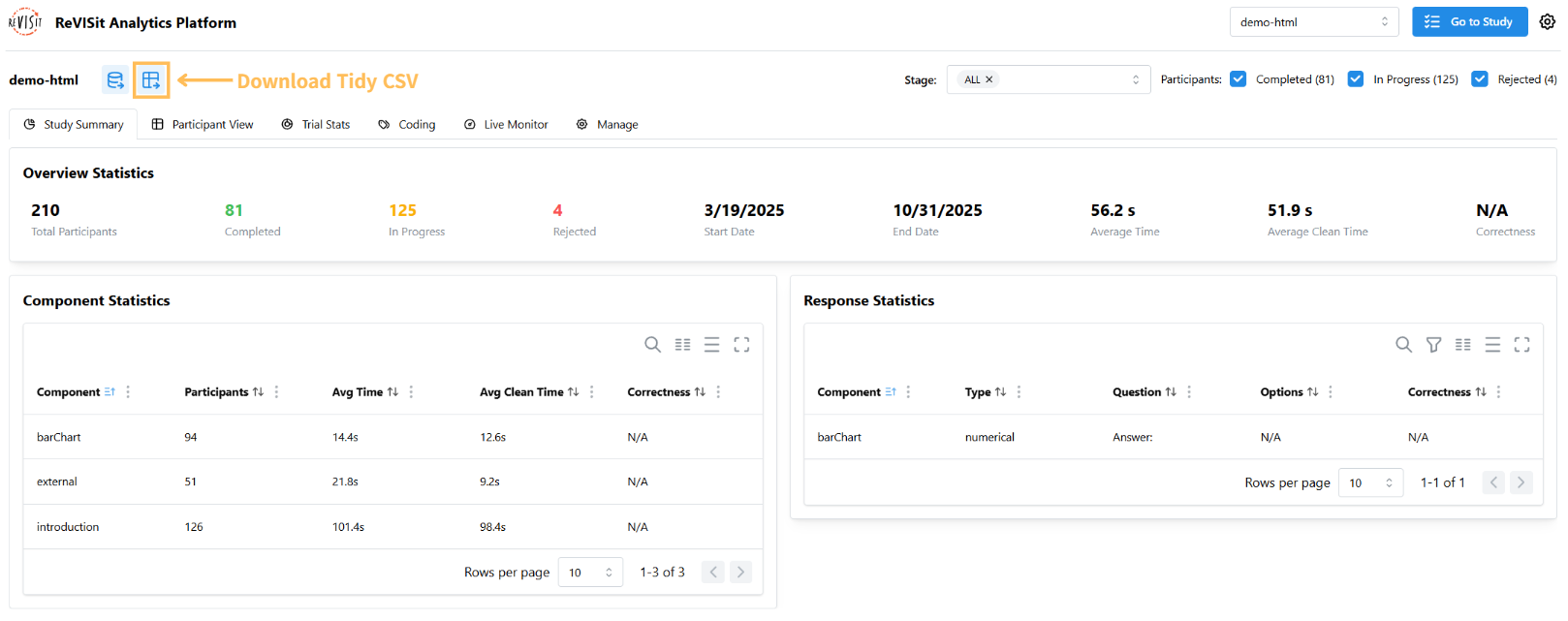
Open the Participant View, then click on the Download as tidy CSV button. Here's a direct link for the example below.
-
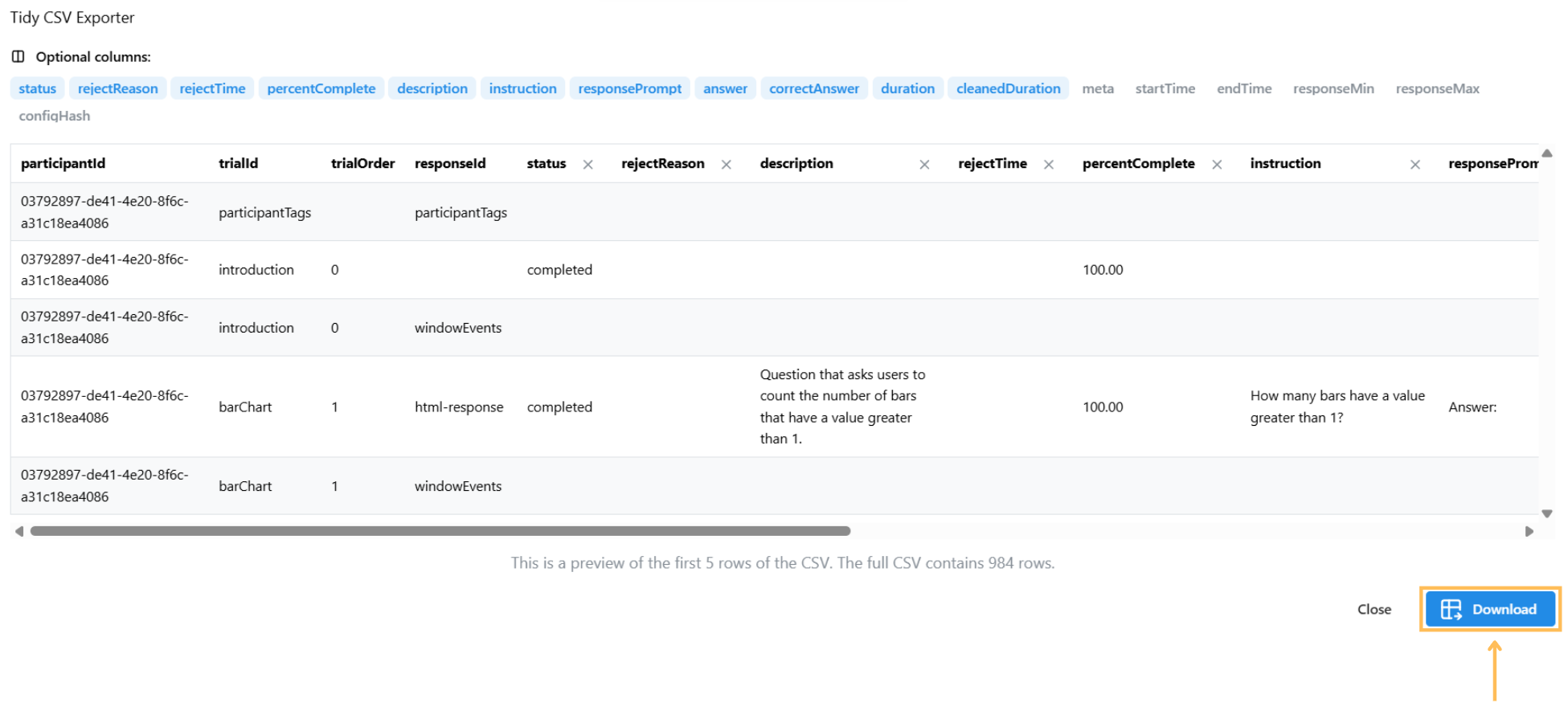
The CSV Exporter will open, where you can select the columns to export. A preview of the first five rows of the output CSV will be displayed.
-
Once ready, click the Download button at the bottom right.
Export Qualitative Tags
If you use Participant Tags and Task Tags for qualitative coding, select participantTags and/or taskTags in the CSV Exporter. These optional fields are not selected by default.
taskTagsadds a column to each task-response row. Its value is a JSON string containing that task's tag array.participantTagsadds a separate row for each participant. BothtrialIdandresponseIdareparticipantTags, and theanswercolumn contains a JSON string with the participant's tag array.
Export Participant Metadata
Select metaData in the CSV Exporter to include each Participant's stored metadata, such as browser or device information. This optional field is not selected by default.
metaData adds one row per Participant rather than a column to every task-response row. Both trialId and responseId are metaData; the complete participant metadata object is serialized as JSON in the existing answer column.
participantId,trialId,trialOrder,responseId,answer
abc123,metaData,,metaData,"{""resolution"":{...}, ...}"
Parse the JSON string in answer in your analysis tooling when you need individual metadata properties.
After downloading the Tidy data, you can import it into your favorite analysis platform for further analysis. Below is an example of how to work with exported data from the Interactive Selections in Scatterplot study in R.
What is the Tidy data format?
The Tidy data format is a structured approach to organizing tabular data where each variable is a column, each observation is a row, and each type of observational unit is a separate table.
You may check more details here.
Including Transcripts in Tidy CSV Export
If your study includes audio recording, you can optionally include a transcript column in your tidy CSV export. This column contains the transcribed text from each trial, making it easy to analyze what participants said alongside their responses. You must be using Firebase as your storage engine and have the Google Cloud Speech-to-Text extension configured for your project.
Downloading transcripts for large datasets can take significant time. If you're downloading data for 50 or more participants with transcripts, you'll see a warning about potential delays. The system fetches transcripts with concurrency limits to avoid overwhelming the browser.
Download as JSON
-
Navigate to the Analysis platform for the current study.
-
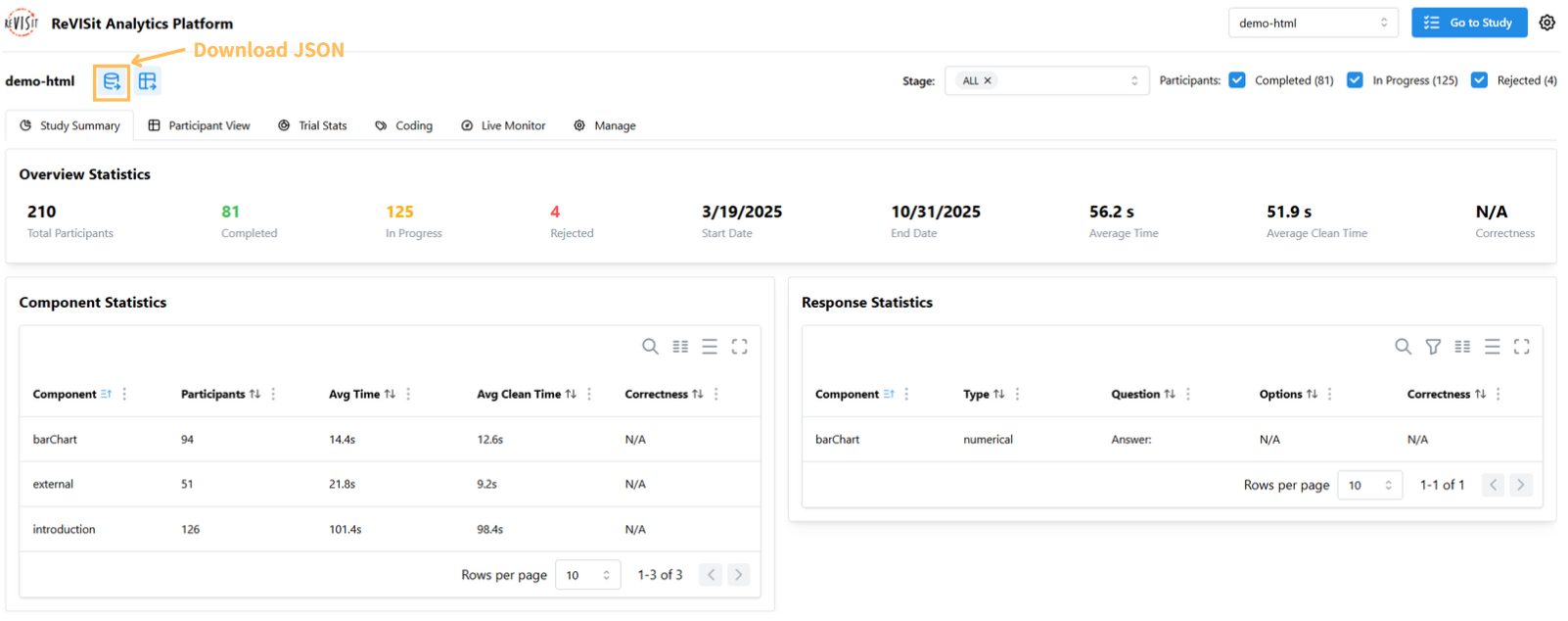
Open the Participant View, then click on the Download as JSON button.
Export Qualitative Tags
JSON downloads include qualitative coding data in each participant's qualitativeCodes object. participantTags contains tags assigned to the participant, while taskTags maps each task identifier to its tag array. Tags include their id and name; their display colors are not exported. A task without tags can be included with an empty array.
{
  "qualitativeCodes": {
    "participantTags": [{ "id": "tag-1", "name": "Hesitation" }],
    "taskTags": {
      "task_0": [{ "id": "tag-2", "name": "Chart Reading" }],
      "task_1": []
    }
  }
}
Timed-Out Components
When a component uses automatic advance and reaches its time limit, its participant-data record has timedOut: true, an end time, and an empty answer object. Treat this as an incomplete response rather than a submitted answer when analyzing the JSON download.
Download Provenance
Standard participant JSON downloads do not include provenance graphs. This keeps the download smaller and faster when you do not need provenance data.
To analyze provenance, use the provenance ZIP download button next to the other download buttons. The ZIP contains separate provenance JSON files for each participant and task. Participant replay supports both this separate provenance storage and provenance graphs stored in answers from earlier data, so existing studies and data remain replayable.
Download Audio
You can download audio files if you have enabled recordAudio: true in your study. To learn how to enable audio recording in your study, please visit Think Aloud.
Bulk-Download Participants' Audio
-
Navigate to the Analysis platform for the current study.
-
Open the Participant View, then click on the Download participants audio button.
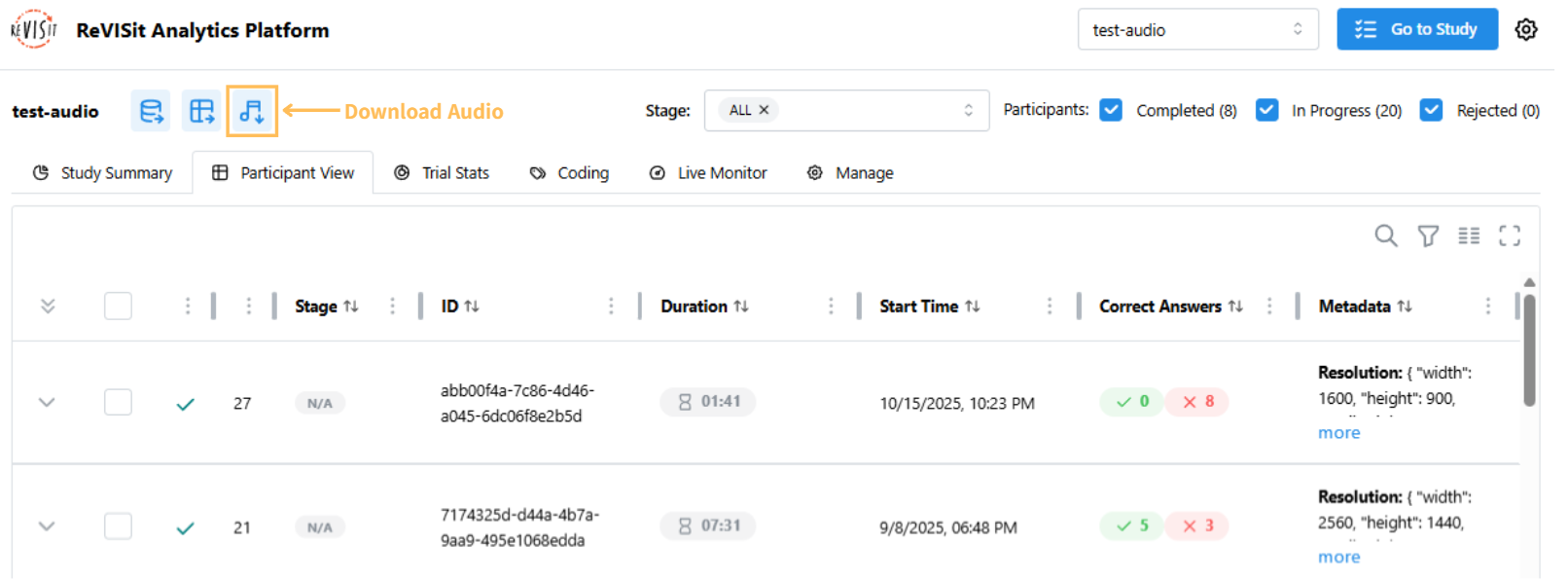
To download audio from a subset of participants, select the participants in the table before clicking download.
Download Individual Participant's Audio for a Specific Task
-
Navigate to the Analysis platform for the current study.
-
Open the Participant View, then expand the participant’s timeline by clicking the expand button.
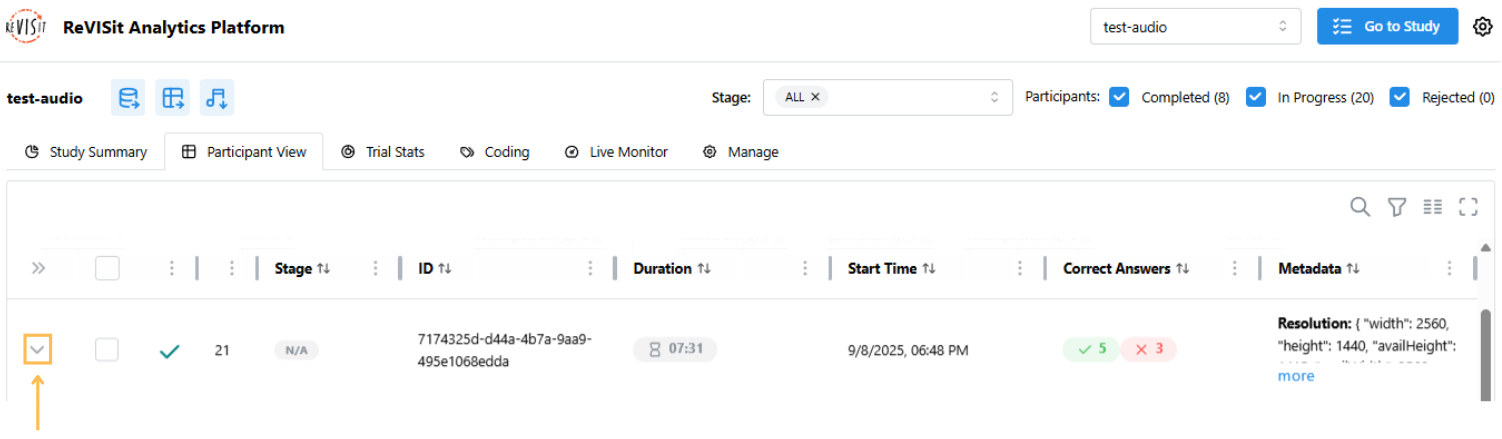
-
Click on the task.
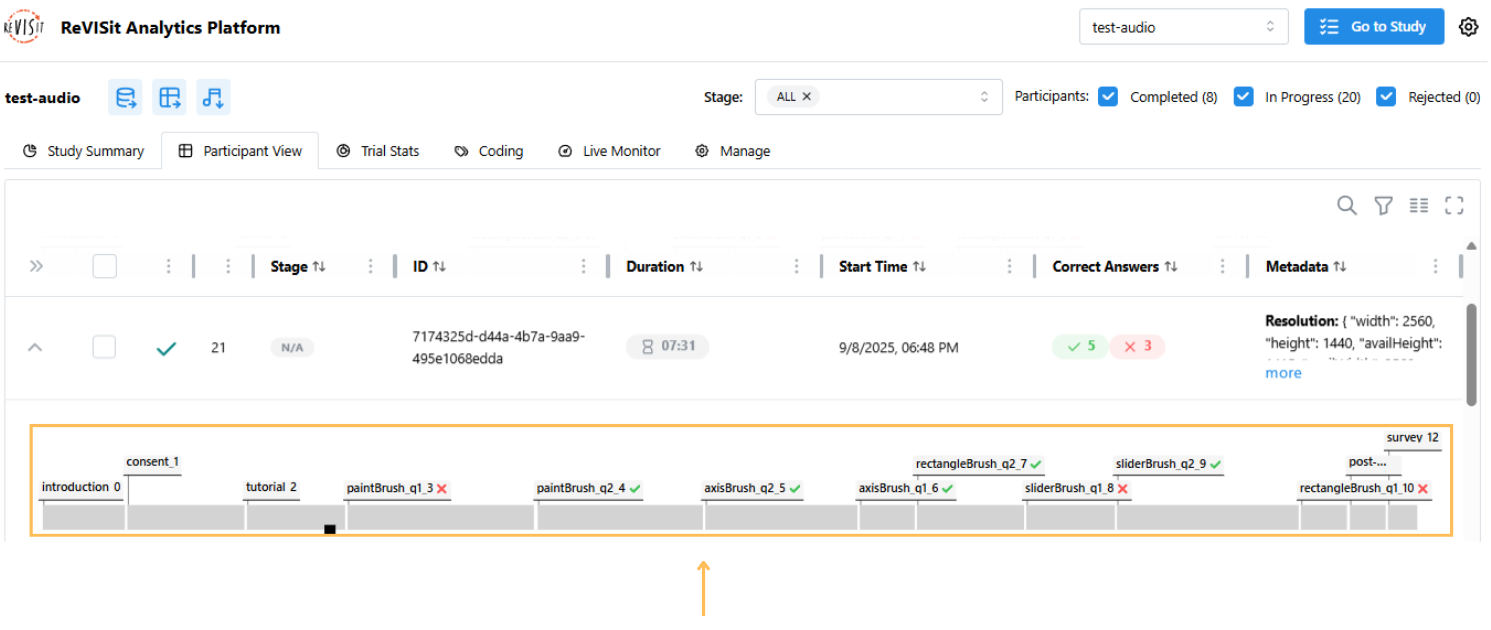
-
Click on the Download Audio button.
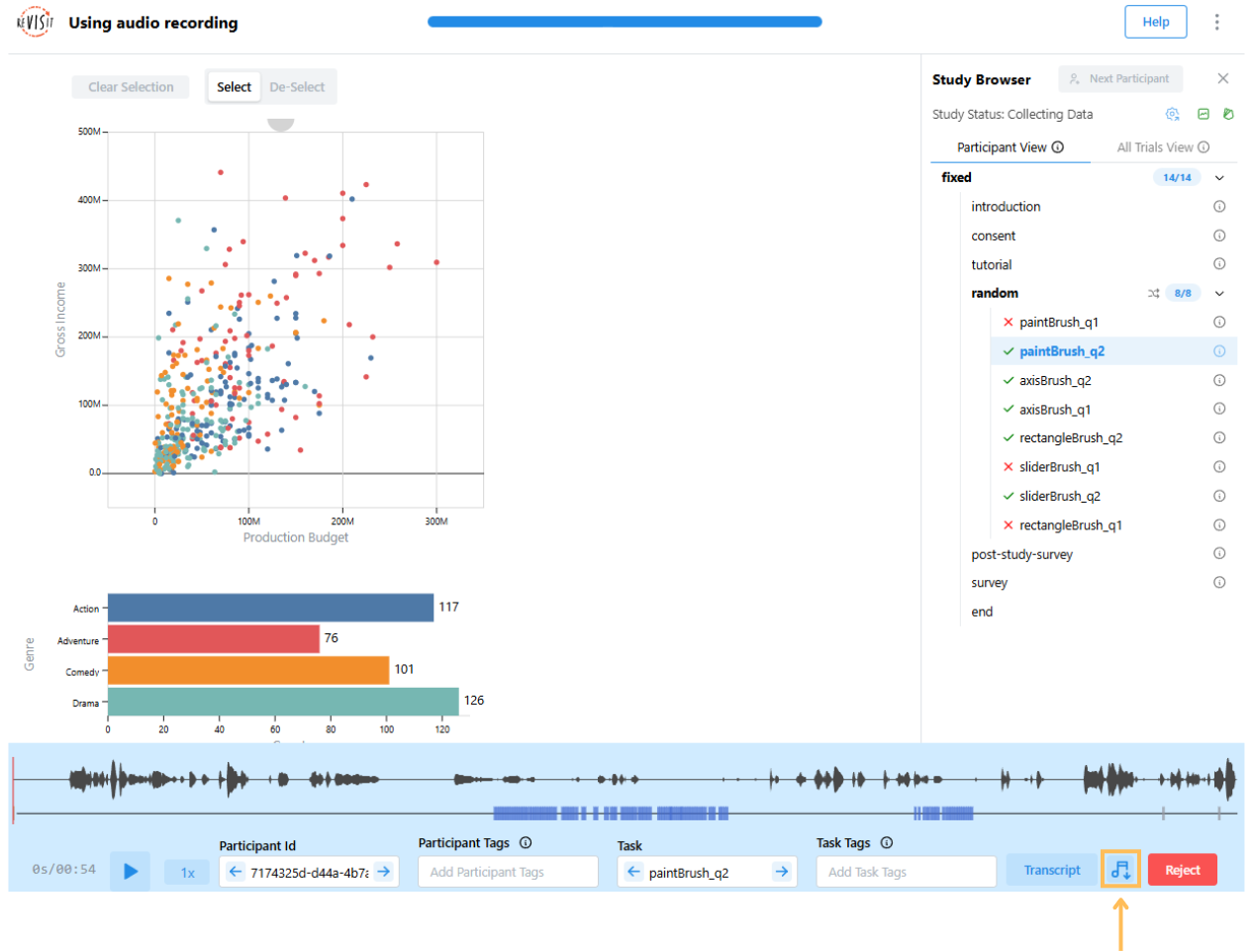
If you are using Firebase with the Google Cloud Speech-to-Text extension configured, it will download the transcript of the audio file as well.
Download Screen Recording
You can download screen recording video files if you have enabled recordScreen: true in your study. To learn how to enable the screen recording feature in your study, please visit Record Screen.
Bulk-Download Participants' Screen Recording
-
Navigate to the Analysis platform for the current study.
-
Open the Participant View, then click on the Download participants' screen recording button.
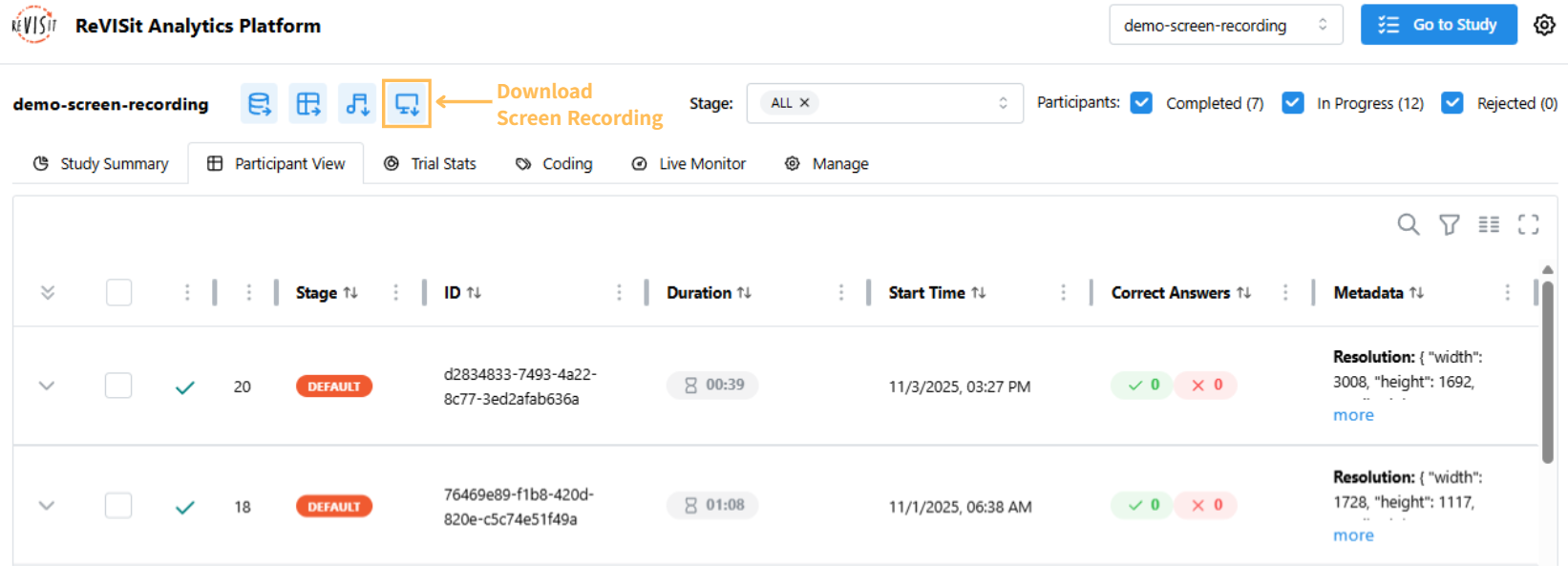
To download screen recording from specific participants, select the participants in the table.
Download Individual Participant's Screen Recording for a Specific Task
-
Navigate to the Analysis platform for the current study.
-
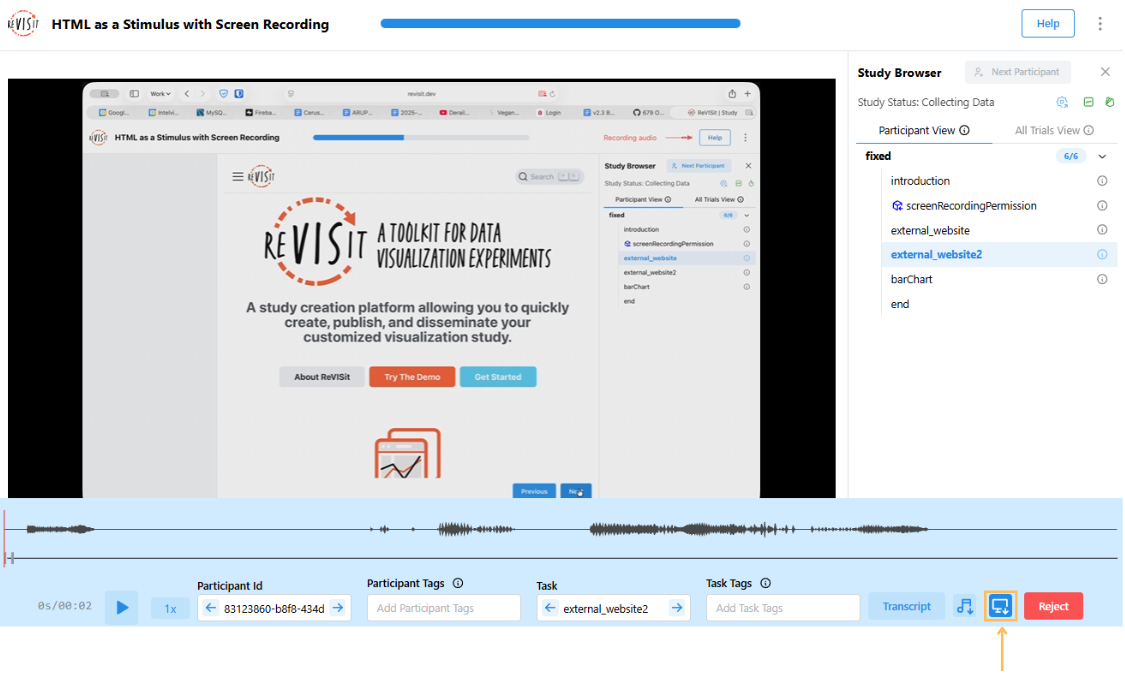
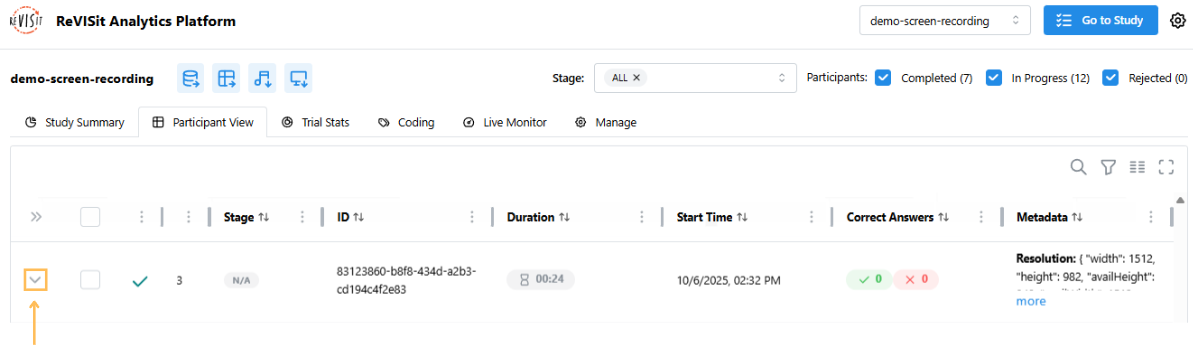
Open the Participant View, then expand the participant’s timeline by clicking the expand button.
-
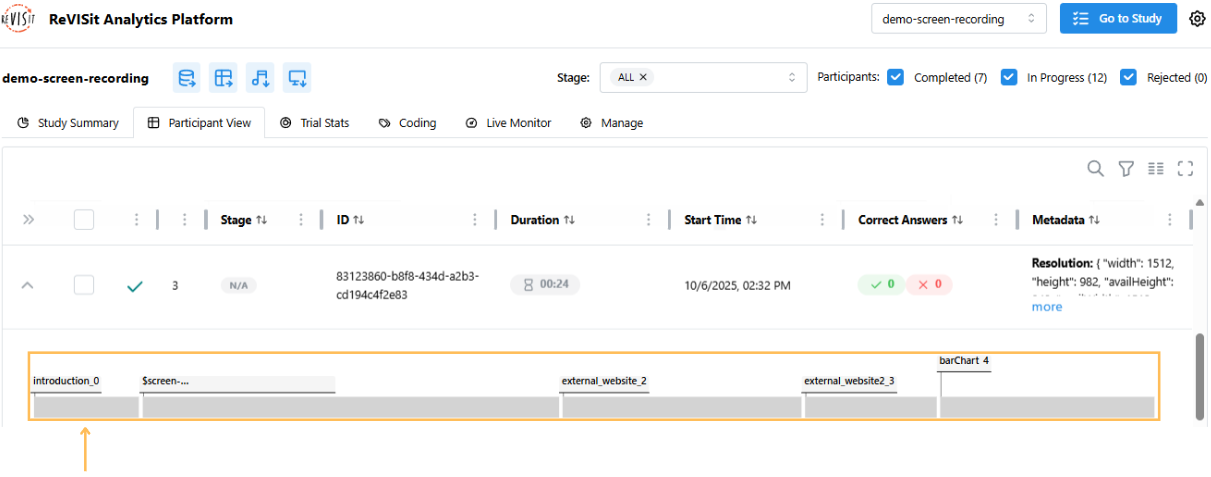
Click on the task.
-
Click on the Download Screen Recording button.