Integrating an LLM-Based Chatbot into a reVISit Study
Studying how people interact with AI is increasingly relevant, and when that AI is embedded in an interactive system, such as a data visualization, the questions get even more interesting. With reVISit, you can now integrate an LLM-based chatbot directly into your study workflow. In this post, we walk through a working demo and show you how to adapt it for your own research.
Take a look at our demo study. The goal of this scenario was to help people learn about a chart. In this context, the chatbot should do more than simply generate answers. It should understand the study context, respond based on relevant materials, maintain continuity across turns, and make every interaction traceable for later analysis.
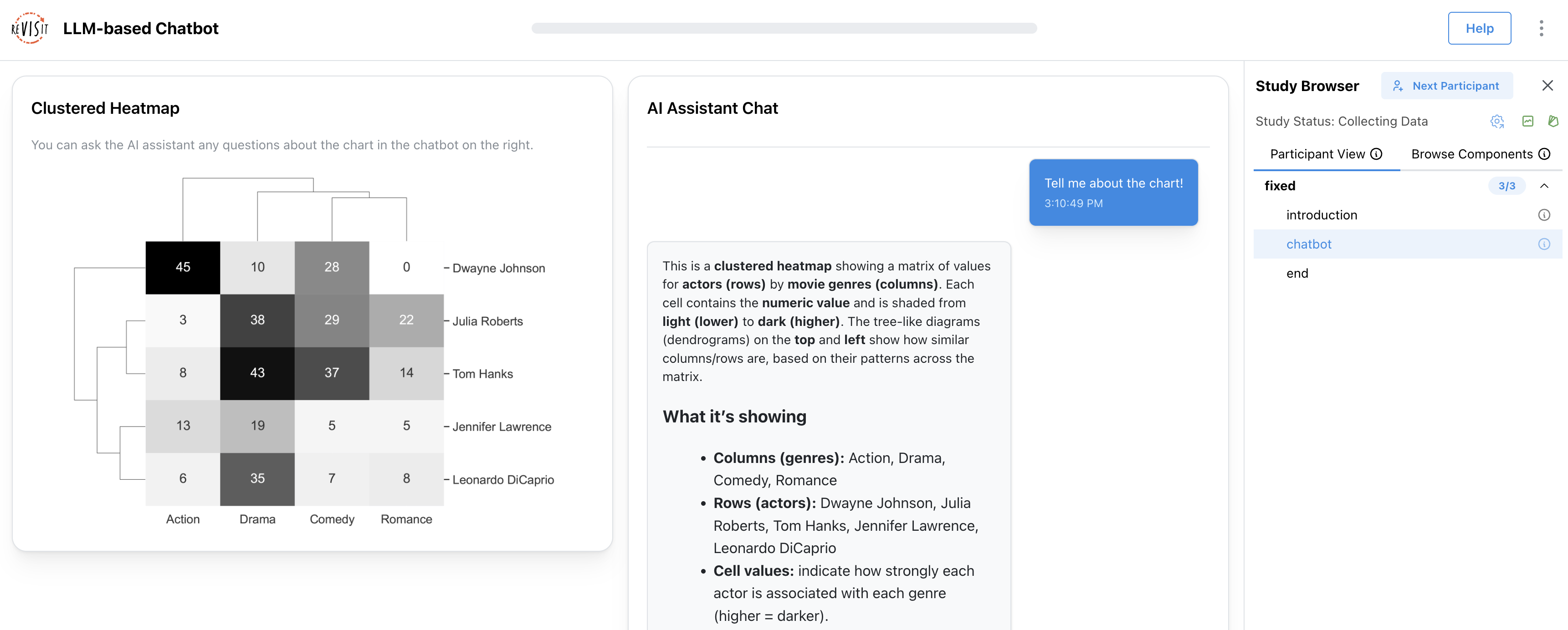
Below, we describe why this chatbot is useful for studies, highlight its core features, and explain how to customize it.
What does this chatbot enable in our demo study?
In the demo study, participants can ask questions about a clustered heatmap, and the chatbot responds with streaming text. When a question requires exact data values or visual details, the chatbot can request the dataset or chart image. All inputs and outputs are tracked by Trrack, our provenance library, making it possible to analyze how participants interact with the chatbot and what information they request.
Our example uses the OpenAI Responses API and is implemented with the following features:
- Conversation memory: keeps the model aware of prior turns
- Streaming responses: reduce perceived latency and make the interface feel more responsive
- Sending the chart image and dataset only when needed: gives the chatbot access to study materials only when required
- Recording provenance and conversation history: makes interactions traceable for later analysis
How can you use and customize it?
The demo is designed to be flexible (check out the code). Most settings live in ChatInterface.tsx, where you can customize the chatbot’s behavior and study materials.
Set up the API key
One challenge with LLM-based interfaces is keeping API keys secure in a (mostly) serverless environment such as a reVISit study. Our demo uses a proxy server to get around this problem. We created a simple proxy server for you, which you can find at https://github.com/visdesignlab/openai-api-proxy.
After deploying the proxy, set VITE_OPENAI_API_URL in your .env file for either local development or production.
Adjust the Chatbot Behavior
All key settings live in ChatInterface.tsx. The most relevant parameters are:
Change the assistant behavior (system prompt)
Edit prePrompt and toolPolicy to control how the assistant responds and when it should use tools.
Change the model
Update model in both the tool-selection request and the streaming request.
Learn more: Model list
Change response length and style
max_output_tokens: maximum reply lengthtemperature: creativity level
Learn more: Responses API parameters
Replace the study materials
You can also swap in your own resources:
- Replace
assets/data/clustered-heatmap.csvwith your dataset - Replace the chart image file ID with your own uploaded chart image
Learn more: Files API
This makes it straightforward to adapt the demo to different tasks, datasets, and visualizations.
Get the results
You can review participants’ interactions in the replay interface. The chat history is also included in the downloaded results in CSV or JSON format.
Next steps
Of course, you can also build wildly different intelligent interfaces to study, using our simple example here as a launching point!
This setup can also be combined with audio recording or screen recording for remote unmoderated studies.
If you have questions or want to share what you build, come find us in the reVISit Slack. We’d be excited to see how you apply these ideas in your own prototypes.