Study Card
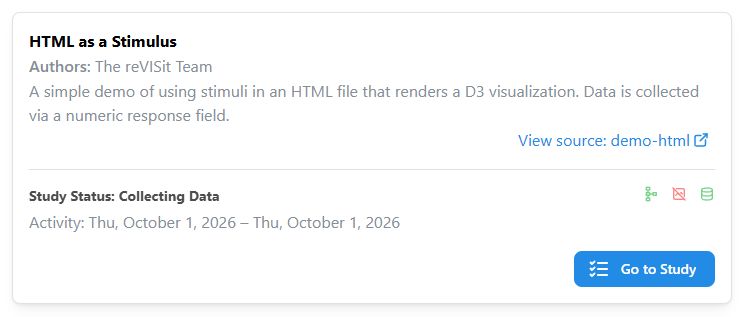
Each visible study has a card on the landing page. The card shows the study's title, authors, description, data-collection status, and mode icons. Click Go to Study to open the study.
When Share Data and Make Analytics Interface Public is enabled, the card also shows Participant status counts:
- Completed - the number of participants who have completed the experiment
- In-Progress - the number of participants who started but have not completed the experiment
- Rejected - the number of participants who were rejected
The activity time range shows the start date of the study and the date the last participant finished.
With data sharing enabled, click Analyze & Manage Study to open the study summary in the analysis platform.

When data sharing is off, the card remains visible, but Participant counts, configuration warnings and errors, and Analyze & Manage Study are hidden. The study description, status, activity dates when available, and Go to Study remain available.
To organize the cards into tabs or hide an entire card, see Configuring the Landing Page.