Applying Styles
ReVISit provides flexible styling capabilities to customize the appearance of your study components and responses. You can apply styles at three levels: globally through UI configuration, at the component level, and at the response level.
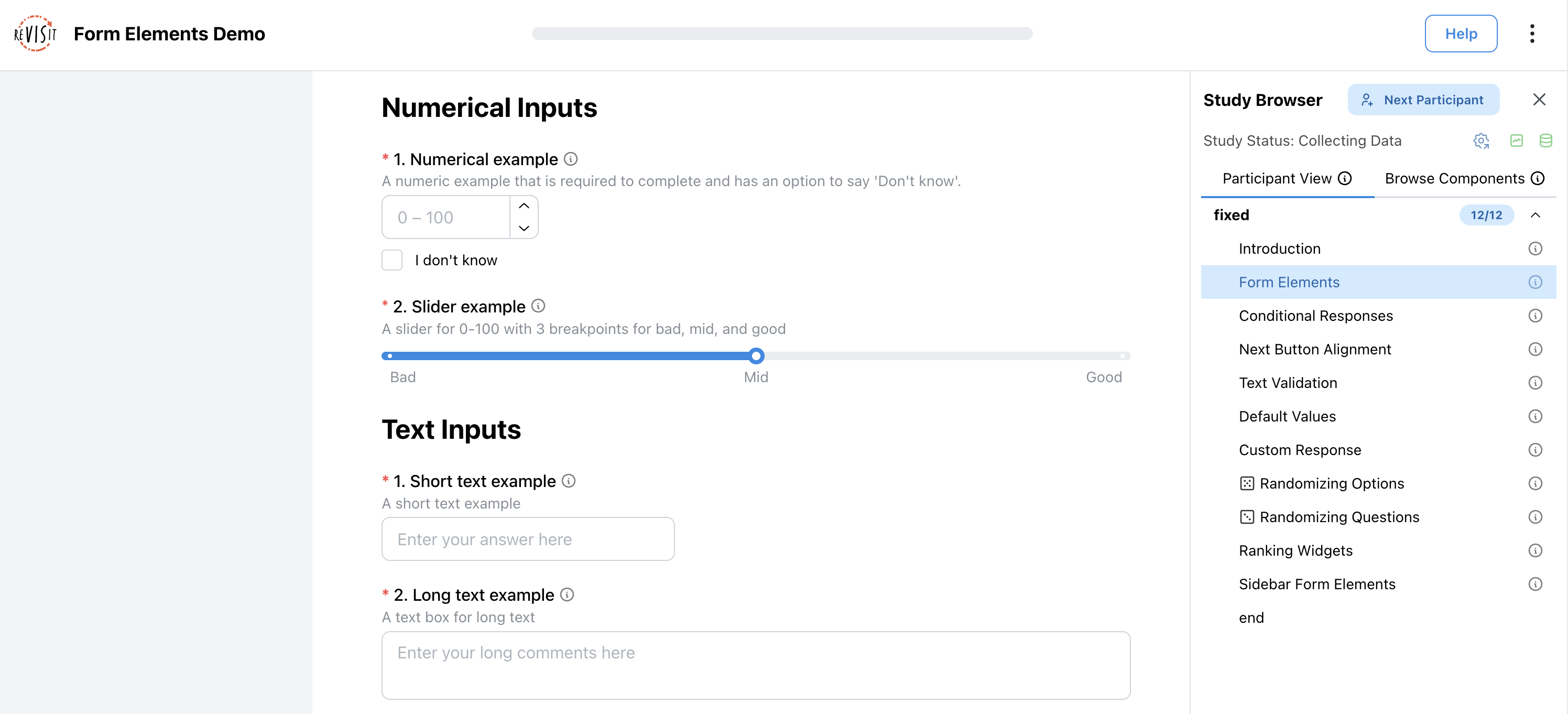
Default Widths and Form Styling
Response blocks above and below the stimulus are centered, with a maximum width of 880px and space around the responses. They shrink to fit narrower screens. Sidebar blocks keep their own layout.
ReVISit limits the width of compact answer fields while allowing their question text to use the form's width:
- Up to 150px:
numerical,date(date/month/year), andshortTextwithphoneNumberorusPhoneNumbervalidation. - Up to 180px:
time. - Up to 280px: other
shortTextresponses and single- or multi-selectdropdownresponses. - Full form width, up to 1600px: all remaining response types.
Explore the response types and their appearance in the Form Elements Demo.
To customize the layout, change the column width, resize individual responses, or apply a Google Forms style without writing CSS.
Color Mode
Set uiConfig.colorMode in your Study Config to choose the study's appearance:
"uiConfig": {
  "colorMode": "dark"
}
| Value | Behavior |
|---|---|
light | Always use light mode. This is the default when colorMode is omitted. |
dark | Always use dark mode. |
userPreference | Use the Participant's system color preference when they start the study. |
The chosen mode is saved with the Participant's data and used when they resume the study or when an Analyst replays it. Later changes to the system theme do not change that Participant's study mode.
Participants do not have a theme toggle within the study. The theme toggle on the home page and in Analysis controls the application appearance separately and does not override the Study Config.
HTML and Embedded Websites
Components with "type": "website" inherit the study's color mode by default. To give an embedded page a different mode, set colorMode on that component to light or dark:
"components": {
  "chart": {
    "type": "website",
    "path": "study-name/assets/chart.html",
    "colorMode": "light",
    "response": []
  }
}
This passes a CSS color scheme to the iframe; the embedded page must support it. It does not recolor a page's hard-coded backgrounds, text, or chart colors.
Built-in study controls support both modes. Custom CSS, images, and visualizations may need their own color adjustments. For example, a Vega chart with dark axis labels needs lighter labels to remain readable on a dark background. Check your stimuli in each mode your study allows.
Try the Dark Mode Demo to see forms, a Vega chart, and an embedded page in a dark study.
Styling Methods
There are two primary ways to apply styles to your study:
1. External CSS Files (stylesheetPath)
For comprehensive styling with complex rules, pseudo-classes, etc. across all components, you can load external CSS files.
"uiConfig": {
  "stylesheetPath": "study-name/assets/style.css"
}
When styling elements with external CSS files, target them using the appropriate selectors:
Class Selectors:
- Sidebar:
.sidebar - Study Browser:
.studyBrowser - Header/Title Bar:
.header - Main Content Area:
.main - Logo Image:
.logoImage - Study Title:
.studyTitle - Progress Bar:
.progressBar - Help Modal:
.helpModal - Stimulus Container:
.stimulus, or its component type class (e.g.,.markdown,.image) - Response Type:
.response--responseType(e.g.,.response--textOnly,.response--likert,.response--divider) - Response Block Container:
.responseBlock - Response Block Container with Location:
.responseBlock-location(e.g.,.responseBlock-aboveStimulus,.responseBlock-belowStimulus,.responseBlock-sidebar) - Individual Response:
.response - Required asterisk in a response prompt:
.required-asterisk
ID Selectors:
- Component:
#componentName(e.g.,#introduction,#survey-question) - Response:
#responseId(e.g.,#final-feedback,#user-rating)
A stylesheet can affect any matching element while it is loaded, even when attached to one component or response. Use an ID selector to target a single element. When rules conflict, more specific selectors take precedence; equally specific rules use load order. Inline style values override ordinary stylesheet rules on the same element.
You can override the default widths with the selectors above without adding !important.
You can style the required marker that appears in a response prompt using .required-asterisk:
.required-asterisk {
  color: #c00;
  margin-right: 0.25em;
}
2. Inline Styles (style)
For basic styling like sizing, colors, and fonts, apply specific CSS properties directly to components or responses:
"component": {
    "style": {
        "width": "800px",
        "margin": "20px auto",
        "padding": "30px",
        "backgroundColor": "#96dcf5",
        "border": "1px solid #aeaeae",
        "borderRadius": "12px"
    }
},
Styling Custom React Components
Inside custom React components, use Mantine's Styles API to style individual controls. Its styles and classNames props belong in React code, not in the Study Config.
When updating an older study to Mantine 9, see the Mantine 7 to 8 and Mantine 8 to 9 migration guides.
UIConfig Styling
Using External CSS Files
Apply global styles that affect the entire study interface:
"uiConfig": {
  "contactEmail": "your@email.com",
  "logoPath": "study-name/assets/logo.svg",
  "withProgressBar": true,
  "withSidebar": true,
  "stylesheetPath": "study-name/assets/globalStyle.css"
}
Examples
Form Style
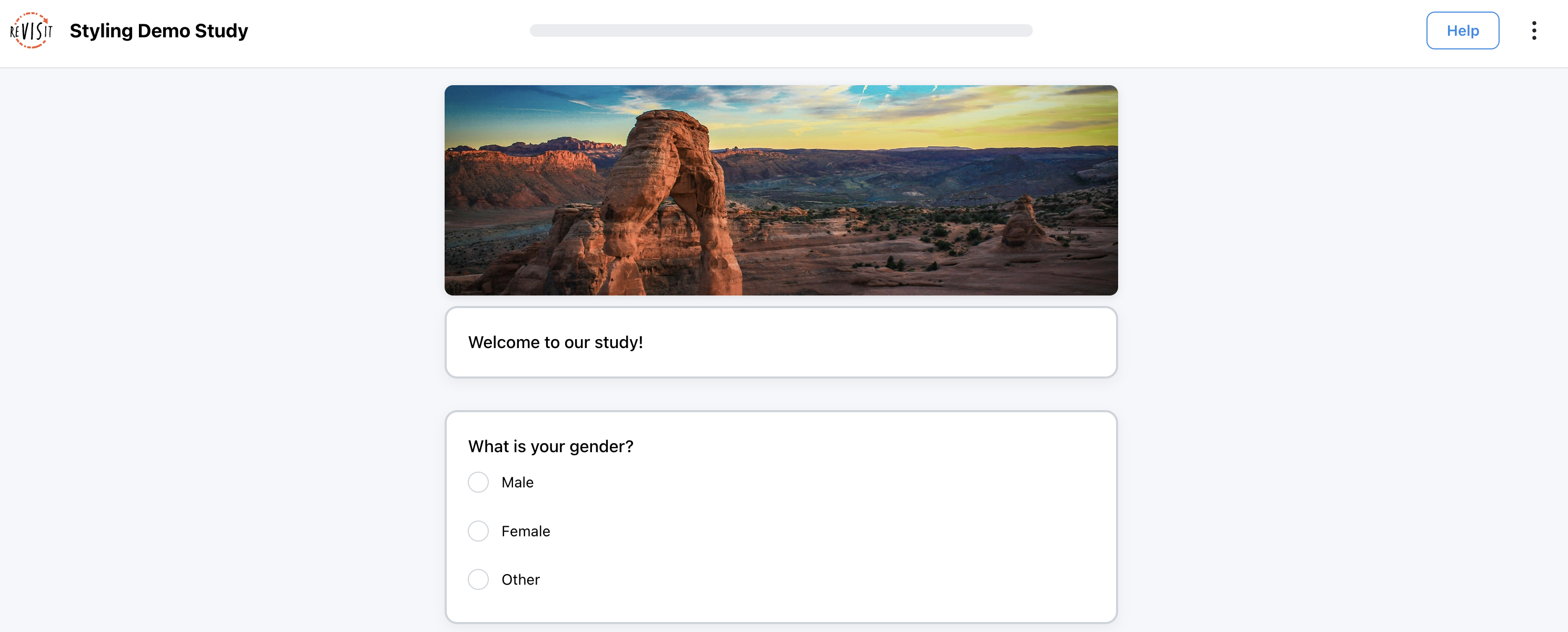
Use revisitAssets/googleForm.css to display responses as centered cards with rounded borders and a subtle shadow. Cards are up to 640px wide, and colors follow the study's light or dark theme.
Try the Shared Form Style page in the Styling Demo to see the cards and section divider.
To style one page, add stylesheetPath to that component. The following partial Study Config defines a questionnaire without a header image. Add survey to your study's sequence to display it.
{
  "components": {
    "survey": {
      "type": "questionnaire",
      "stylesheetPath": "revisitAssets/googleForm.css",
      "response": [
        {
          "id": "survey-title",
          "type": "textOnly",
          "prompt": "# Your experience"
        },
        {
          "id": "survey-frequency",
          "type": "radio",
          "prompt": "How often do you create surveys?",
          "options": ["Often", "Sometimes", "Rarely"]
        },
        {
          "id": "survey-section-break",
          "type": "divider"
        },
        {
          "id": "survey-feedback",
          "type": "longText",
          "prompt": "What would make a survey easier to complete?",
          "required": false
        }
      ]
    }
  }
}
For the same style throughout a study, set "stylesheetPath": "revisitAssets/googleForm.css" in uiConfig instead. This shared stylesheet is already included in public/revisitAssets/.
Large Text
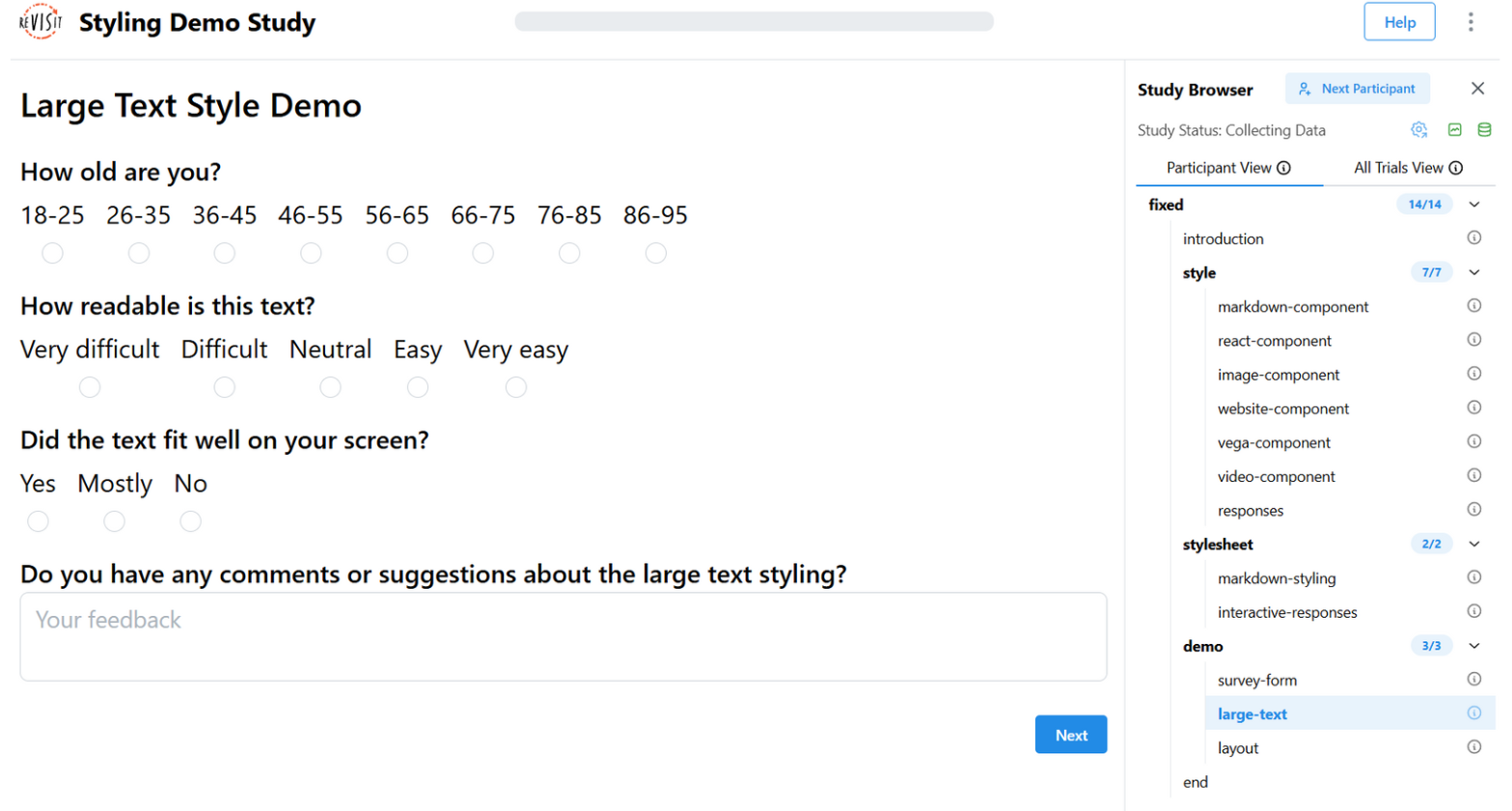
The large-text questionnaire applies this stylesheet to one component:
"components": {
  "large-text": {
    "type": "questionnaire",
    "stylesheetPath": "demo-style/assets/style/largeText.css",
    "response": []
  }
}
.studyTitle {
  font-size: 24px;
  font-weight: bold;
}

.progressBar {
  min-height: 18px;
}

.response {
  margin-bottom: 40px;
}
.responseBlock p {
  font-size: 24px;
}

.responseBlock input,
.responseBlock textarea,
.responseBlock button {
  font-size: 22px;
}
Stimulus Width
By default, the stimulus container and response blocks above and below it are centered with a maximum width of 880px. Response blocks have 16px to 40px of horizontal padding on each side, depending on browser width. The stimulus does not receive that form padding. Sidebar response blocks keep their own layout.
Change the Column Width with CSS
Create public/study-name/assets/style.css and load it through uiConfig.stylesheetPath as shown in External CSS Files. Replace study-name with your study directory's name. This rule widens the stimulus, response blocks, and navigation row together:
.stimulus,
.responseBlock-aboveStimulus,
.responseBlock-belowStimulus,
.responseBlock-actions {
  max-width: 1000px;
}
The column still shrinks to fit the available space. Use max-width: none in the same rule to remove the column's maximum width. Individual responses retain their own default limits unless you override their widths.
To change only the stimulus width, use .stimulus alone.
These rules override the default layout. If you have also set width or maxWidth in the component's inline style, adjust or remove those values before controlling the same properties with CSS.
Set One Component's Width
Set style.width and style.maxWidth on a component to size its stimulus container. The response blocks retain their own widths.
This partial Study Config sets an image stimulus to 800px, shrinking on narrower screens. Replace the image path with your study's asset path.
{
  "components": {
    "chart": {
      "type": "image",
      "path": "study-name/assets/chart.png",
      "style": {
        "width": "800px",
        "maxWidth": "100%"
      },
      "response": []
    }
  }
}
Component Styling
Using External CSS Files
Components can load their own CSS files using stylesheetPath:
"markdown-intro": {
  "type": "markdown",
  "path": "study-name/assets/introduction.md",
  "stylesheetPath": "study-name/assets/style/componentStyle.css",
  "response": []
}
Example CSS file
You can select components with their name. For example, if your component name is markdown-intro, that will be the id in your CSS.
Use #markdown-intro to select your component. You can also use #markdown-intro code to select code elements inside that component.
If you would like to target all markdown components across your study, use the class selector .markdown.
.markdown {
  color: blue;
}

#markdown-intro {
  background: lightblue;
  border: 1px solid #ccc;
  padding: 20px;
  border-radius: 10px;
  margin: 20px auto;
  max-width: 800px;
}

#markdown-intro code {
  background: #f8f8f8;
  padding: 2px 4px;
  border-radius: 3px;
}
Using Inline Styles
Apply styles directly to component configurations:
"chart": {
  "type": "image",
  "path": "study-name/assets/chart.png",
  "style": {
    "width": "500px",
    "border": "2px solid #333",
    "borderRadius": "10px",
    "margin": "20px auto"
  },
  "response": []
}
If you set width in style without setting maxWidth, reVISit automatically applies maxWidth: '100%' so the component cannot overflow its container on smaller screens. Set maxWidth explicitly to override this clamp.
Component Styling Examples
Markdown Component styling
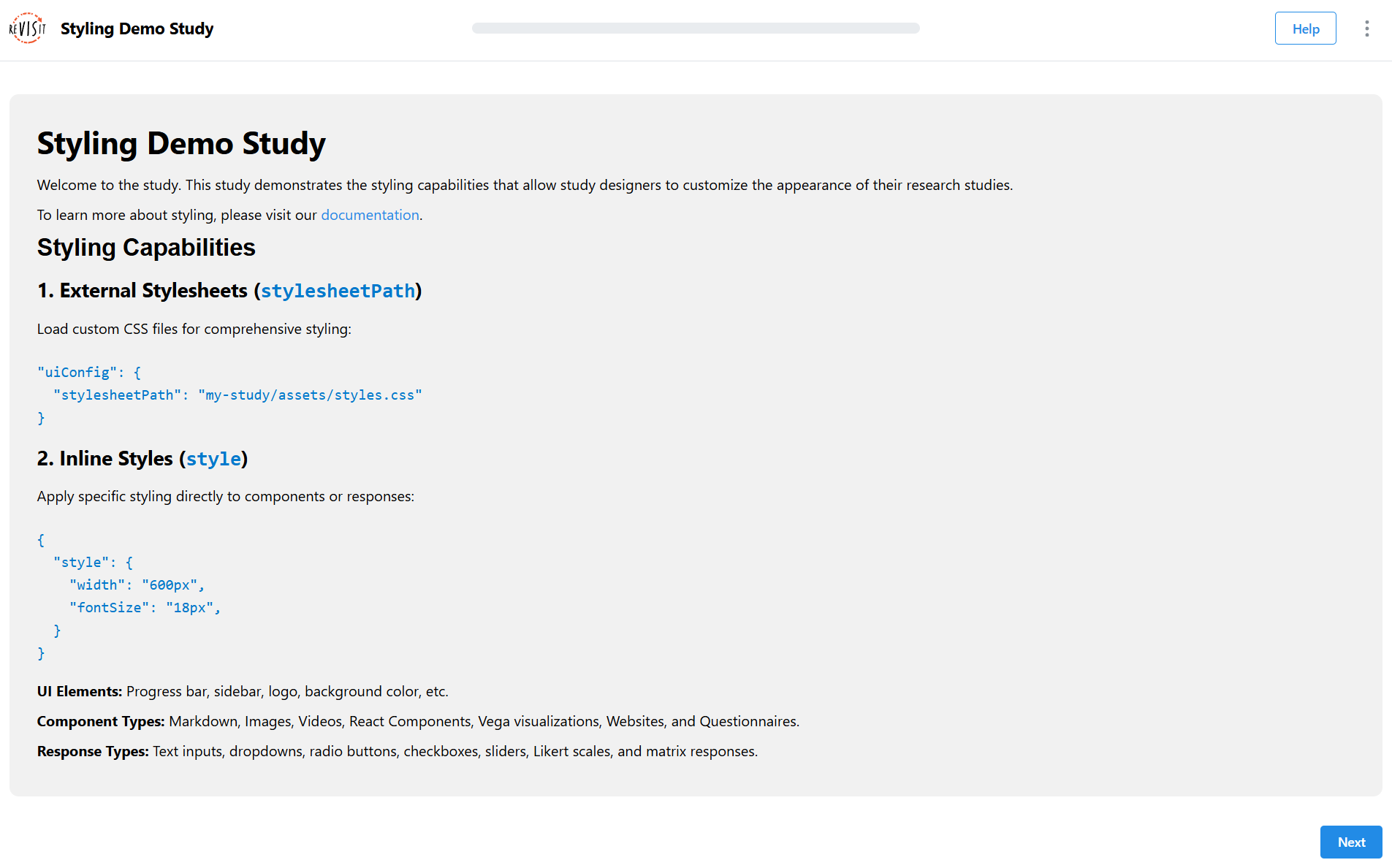
"components": {
  "introduction": {
    "type": "markdown",
    "path": "study-name/assets/introduction.md",
    "stylesheetPath": "study-name/assets/style/introductionStylesheet.css",
    "response": []
  }
}
.markdown {
  background-color: #f1f1f1;
  padding: 30px;
  border-radius: 10px;
  margin: 20px auto;
}

#introduction h2 {
  font-family: 'Gill Sans', sans-serif;
  font-weight: 700;
}

#introduction code {
  color: #0079cd;
}
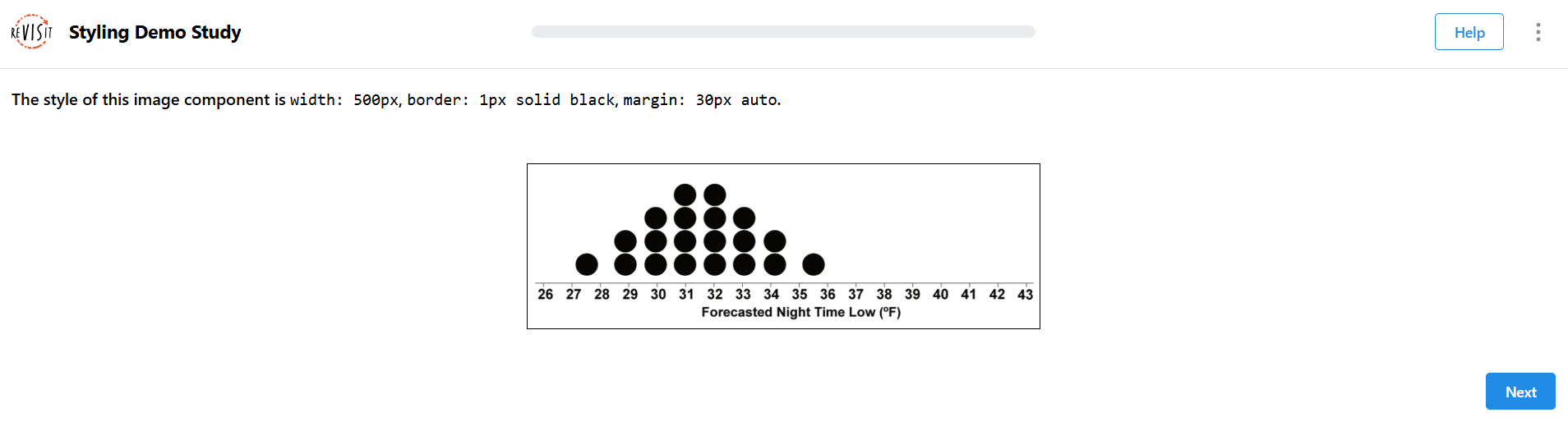
Image Component Styling
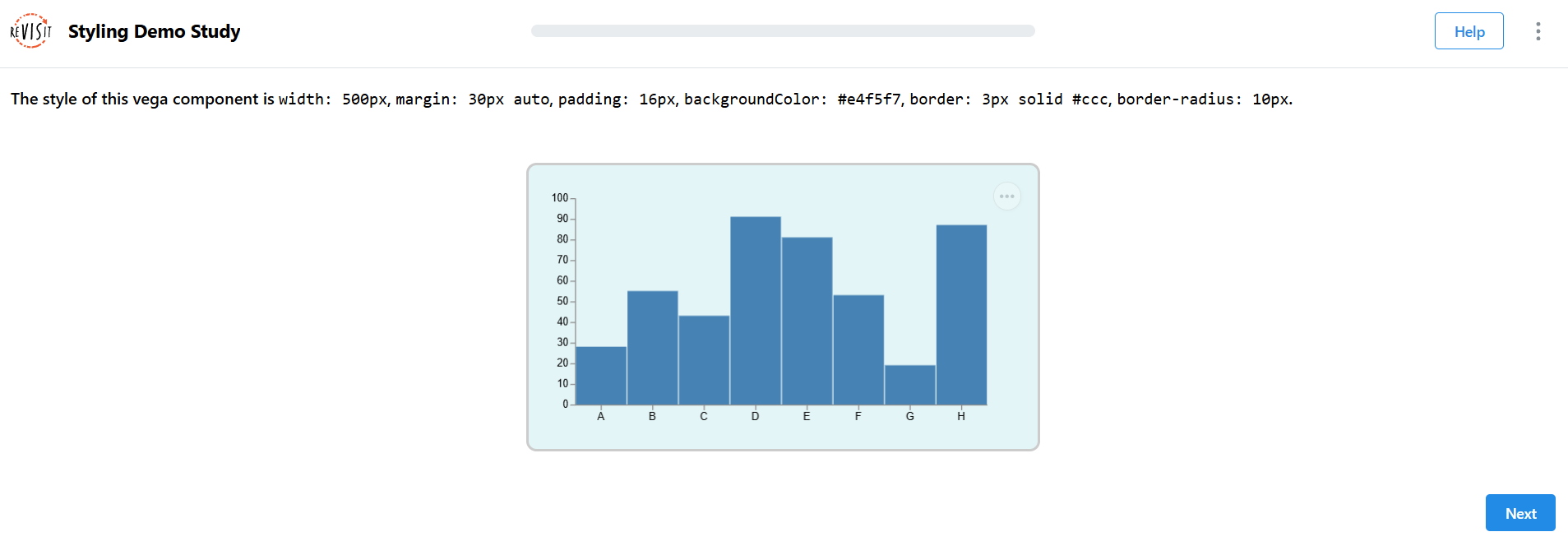
These examples reuse assets from the bundled image and Vega demos. Asset paths are relative to public/, so they can reference files outside the study's own folder.
"components": {
  "chart": {
    "type": "image",
    "path": "demo-image/assets/uncertainty-1.png",
    "response": [
      {
        "id": "image-component-style",
        "prompt": "The style of this image component is `width: 500px`, `border: 1px solid black`, `margin: 30px auto`.",
        "type": "textOnly",
        "location": "aboveStimulus"
      }
    ],
    "style": {
      "width": "500px",
      "border": "1px solid black",
      "margin": "30px auto"
    }
  }
}
Vega Component Styling
"components": {
  "vega-component": {
    "type": "vega",
    "path": "demo-vega/specs/vegademo1.specs.json",
    "response": [
      {
        "id": "vega-path-component-style",
        "prompt": "The style of this vega component is `width: 500px`, `margin: 30px auto`, `padding: 16px`, `backgroundColor: #e4f5f7`, `border: 3px solid #ccc`, `border-radius: 10px`.",
        "type": "textOnly",
        "location": "aboveStimulus"
      }
    ],
    "style": {
      "width": "500px",
      "margin": "30px auto",
      "padding": "16px",
      "backgroundColor": "#e4f5f7",
      "border": "3px solid #ccc",
      "borderRadius": "10px"
    }
  }
}
Response Styling
The default answer widths keep compact input fields narrower than their question text. Choose whether to resize just the answer field or the entire response, including its prompt.
Change Only the Answer Field Width
To widen a short-text answer field while keeping its question text wide, set --response-field-max-width in a stylesheet loaded by the study. This example changes the default for short-text responses to 400px:
.response--shortText {
  --response-field-max-width: 400px;
}
Use a short-text response ID such as #contact-phone instead of .response--shortText to target one response. This variable changes the default cap; it does not apply when that response defines style.width, style.minWidth, or style.maxWidth.
Using External CSS Files
Responses can load a stylesheet through stylesheetPath. Use an ID such as #user-feedback to style one response, or a class such as .response--likert to style all responses of that type.
Create public/study-name/assets/responseStyle.css with the CSS below. Add this response to a component's response array, replacing study-name with your study directory's name:
{
  "id": "user-feedback",
  "prompt": "Rate your experience:",
  "type": "likert",
  "numItems": 5,
  "leftLabel": "Poor",
  "rightLabel": "Excellent",
  "stylesheetPath": "study-name/assets/responseStyle.css",
  "location": "belowStimulus"
}
#user-feedback {
  background: #f8f9fa;
  border: 1px solid #dee2e6;
  padding: 15px;
  border-radius: 8px;
  margin: 10px 0;
}

.response--likert {
  background: #e9ecef;
  border-radius: 4px;
  padding: 8px 12px;
}
Using Inline Styles
Apply style to an entry in a component's response array. Setting width, minWidth, or maxWidth here replaces that response's default width limit. Unlike component styling, response styling does not automatically add maxWidth: "100%"; include it to keep a fixed width within the form on narrower screens.
The following response uses the available width up to 600px:
{
  "id": "user-comments",
  "prompt": "Additional comments:",
  "type": "longText",
  "placeholder": "Share your thoughts...",
  "location": "belowStimulus",
  "style": {
    "width": "100%",
    "maxWidth": "600px",
    "margin": "20px auto",
    "padding": "15px",
    "border": "1px solid #ccc",
    "borderRadius": "6px",
    "backgroundColor": "#fafafa"
  }
}
Styling Required Asterisks
Use .required-asterisk in a stylesheet to change the required marker beside response prompts. Create public/study-name/assets/required.css, replacing study-name with your study folder, and add stylesheetPath to your existing uiConfig. The following is a partial Study Config excerpt:
"uiConfig": {
  "stylesheetPath": "study-name/assets/required.css"
}
This CSS changes required markers to blue:
.required-asterisk {
  color: #1971c2;
}
To style only one response, prefix the selector with its ID, such as #attention-check .required-asterisk. If you already load a stylesheet, add the rule to that file.
You can hide the marker with display: none on the same selector, for example when your instructions state that all questions are required. Keep the required/optional distinction clear in the question text. Changing or hiding the asterisk only affects appearance: it does not make a response optional or bypass response validation.
Response Styling Examples
Text Response Styling
This excerpt defines a component's response array. Both responses request a width of 700px and shrink to fit a narrower form.
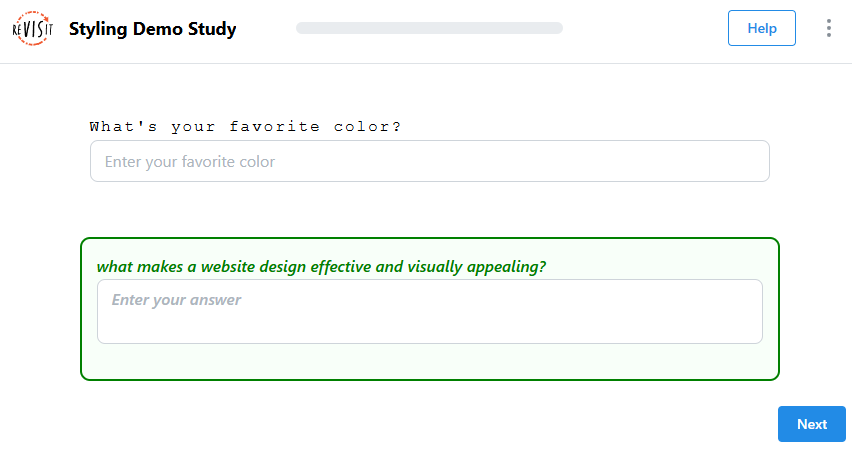
"response": [
  {
    "id": "short-text-response-style",
    "prompt": "What's your favorite color?",
    "type": "shortText",
    "location": "belowStimulus",
    "placeholder": "Enter your favorite color",
    "required": false,
    "style": {
      "fontFamily": "'Courier New', monospace",
      "width": "700px",
      "maxWidth": "100%",
      "margin": "25px auto",
      "padding": "10px",
      "letterSpacing": "2px"
    }
  },
  {
    "id": "long-text-response-style",
    "type": "longText",
    "prompt": "What makes a website design effective and visually appealing?",
    "location": "belowStimulus",
    "placeholder": "Enter your answer",
    "required": false,
    "style": {
      "width": "700px",
      "maxWidth": "100%",
      "margin": "25px auto",
      "padding": "15px",
      "border": "2px solid green",
      "borderRadius": "10px",
      "backgroundColor": "#f8fff9",
      "color": "green",
      "fontStyle": "italic",
      "fontWeight": "600",
      "textTransform": "lowercase"
    }
  }
]
Interactive Response Styling
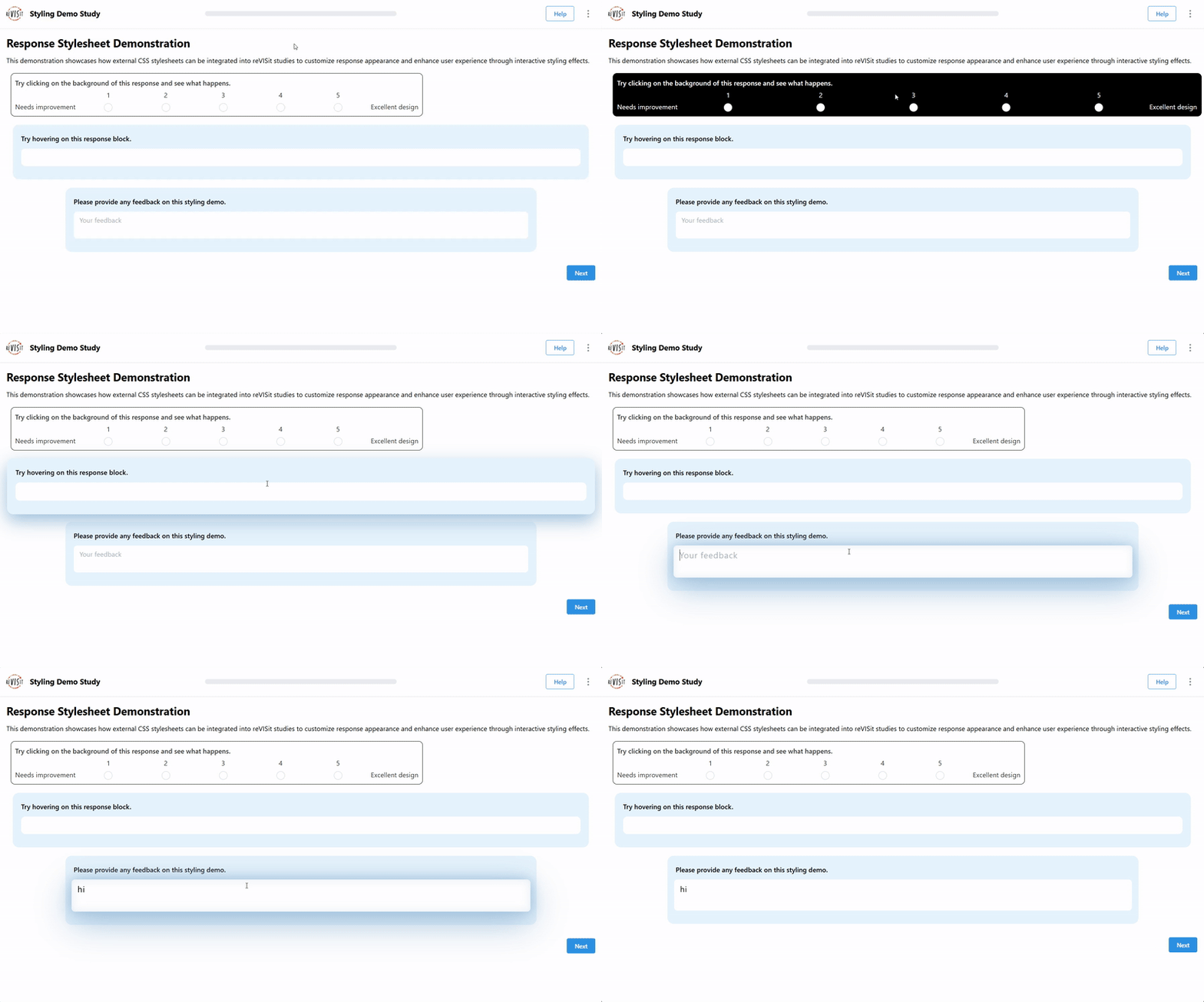
You can also make responses interactive using CSS. For example, you can change the background color when a user clicks on a response. You might also make the text appear larger when the user starts typing. Adding interactions like these can improve the overall usability of your study.
"interactive-responses": {
  "type": "markdown",
  "path": "demo-style/assets/responseStylesheet.md",
  "response": [
    {
      "id": "likert-response",
      "prompt": "Try clicking on the background of this response and see what happens.",
      "type": "likert",
      "location": "belowStimulus",
      "numItems": 5,
      "leftLabel": "Needs improvement",
      "rightLabel": "Excellent design",
      "required": false,
      "stylesheetPath": "demo-style/assets/style/responseStylesheet.css"
    },
    {
      "id": "short-text-response",
      "prompt": "Try hovering on this response block.",
      "type": "shortText",
      "location": "belowStimulus",
      "required": false,
      "stylesheetPath": "demo-style/assets/style/responseStylesheet.css"
    },
    {
      "id": "final-feedback",
      "prompt": "Please provide any feedback on this styling demo.",
      "type": "longText",
      "location": "belowStimulus",
      "placeholder": "Your feedback",
      "required": false,
      "stylesheetPath": "demo-style/assets/style/responseStylesheet.css"
    }
  ]
},
.responseBlock {
  display: flex;
  flex-direction: column;
  align-items: center;
}

#likert-response {
  border: 1px solid black;
  padding: 10px;
  border-radius: 10px;
  margin: 10px;
  width: 70%;
  color: #333333;
  transition:
    background 0.3s ease-in-out,
    color 0.3s ease-in-out,
    width 0.3s ease-in-out;
}

#likert-response:hover {
  width: 100%;
}

#likert-response:active {
  background: #000000;
  color: #ffffff;
}

#short-text-response {
  padding: 20px;
  margin: 15px;
  background-color: #e5f3fd;
  border-radius: 15px;
  transition: all 0.3s ease-in-out;
}

#short-text-response:hover {
  transform: scale(1.02);
  box-shadow: 0 15px 40px #9abddc;
}

#short-text-response input {
  border: none;
  border-radius: 10px;
  margin: 12px auto;
}

#final-feedback {
  width: 80%;
  padding: 20px;
  margin: 20px auto;
  background-color: #e5f3fd;
  border-radius: 15px;
  transition: all 0.5s ease;
}

#final-feedback textarea {
  border: none;
  margin: 12px auto;
  transition: all 0.3s ease;
}

#final-feedback textarea:focus {
  font-size: 20px;
  letter-spacing: 1px;
  transform: scale(1.01);
  animation: typing-glow 1.5s ease-in-out infinite;
}

@keyframes typing-glow {
  0%,
  100% {
    box-shadow: 0 15px 40px #9abddc;
  }
  50% {
    box-shadow:
      0 25px 80px #9abddc,
      0 0 30px #9abddc,
      inset 0 0 20px rgba(154, 189, 220, 0.3);
  }
}