Conditions based on URL Parameters
You can choose to assign participants to specific study conditions via URL parameters. This is useful to manually balance between subject designs and results in clean condition-level analysis.
To pass conditions, use the condition query parameter, for example /path/to/study?condition=color. When the study starts, reVISit reads the URL and only runs conditional blocks whose id matches one of the values. Non-conditional blocks still run as usual for every participant.
Conditions will be available as a column in your data automatically.
To define conditional blocks, use "conditional": true on a block in sequence, and give that block an id. The id is the condition name used in the URL.
{
  "sequence": {
    "order": "fixed",
    "components": [
      "introduction",
      {
        "id": "color",
        "conditional": true,
        "components": ["color-trial-1", "color-trial-2"],
        "order": "random"
      },
      {
        "id": "shape",
        "conditional": true,
        "components": ["shape-trial-1", "shape-trial-2"],
        "order": "fixed"
      }
    ]
  }
}
With this setup, /path/to/study?condition=color includes the color block and skips shape.
You can also pass multiple conditions like /path/to/study?condition=color,shape. The introduction component is shown to all participants regardless of condition.
We strongly recommend using conditions only at the top levels of your sequence and not nesting conditional blocks inside other conditional blocks, as this can lead to unexpected behavior.
If you'd like to combine multiple conditions, like in the following example:
- rectangle
- dark
- light
- circle
- dark
- light
We recommend flattening the conditions into components, like this:
- rectangle-dark
- rectangle-light
- circle-dark
- circle-light
Choosing a Condition from the Study Card
The landing page study card lets you pick one or more conditions and copy a link with those values set.
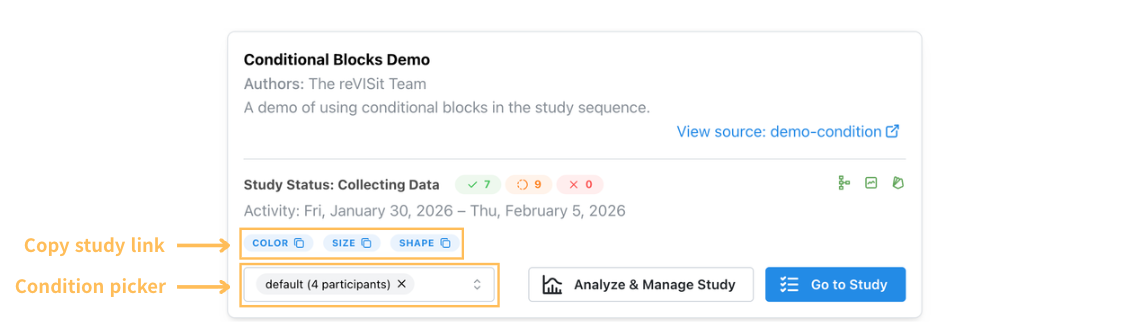
The condition picker lists the available conditions and the current participant counts. Select a condition and click "Go to Study".
After the initial assignment that happens when you visit a URL with a condition, changing conditions is not possible, even in dev mode, except by starting as a new participant with the "Next Participant" button.