config.json
In this part of the tutorial, you will build the Study Config, public/tutorial/config.json. The completed version is public/tutorial/_answers/config.json. Use the completed version to check the step you just finished, not as something to copy all at once.
Before you start editing tutorial files, complete the Installation guide using the Starting from the Template Repository workflow.
Step 1: Run the local server
Start the local server from the root of your template repository:
yarn serve
Before editing the tutorial Study Config, open public/global.json. This file follows the Global Config schema. The template should be empty for now.
Let's add a tutorial study here.
{
  "$schema": "https://raw.githubusercontent.com/revisit-studies/study/v2.4.3/src/parser/GlobalConfigSchema.json",
  "configsList": [
    "tutorial"
  ],
  "configs": {
    "tutorial": {
      "path": "tutorial/config.json"
    }
  }
}
Open http://localhost:8080. You should see the tutorial study listed.
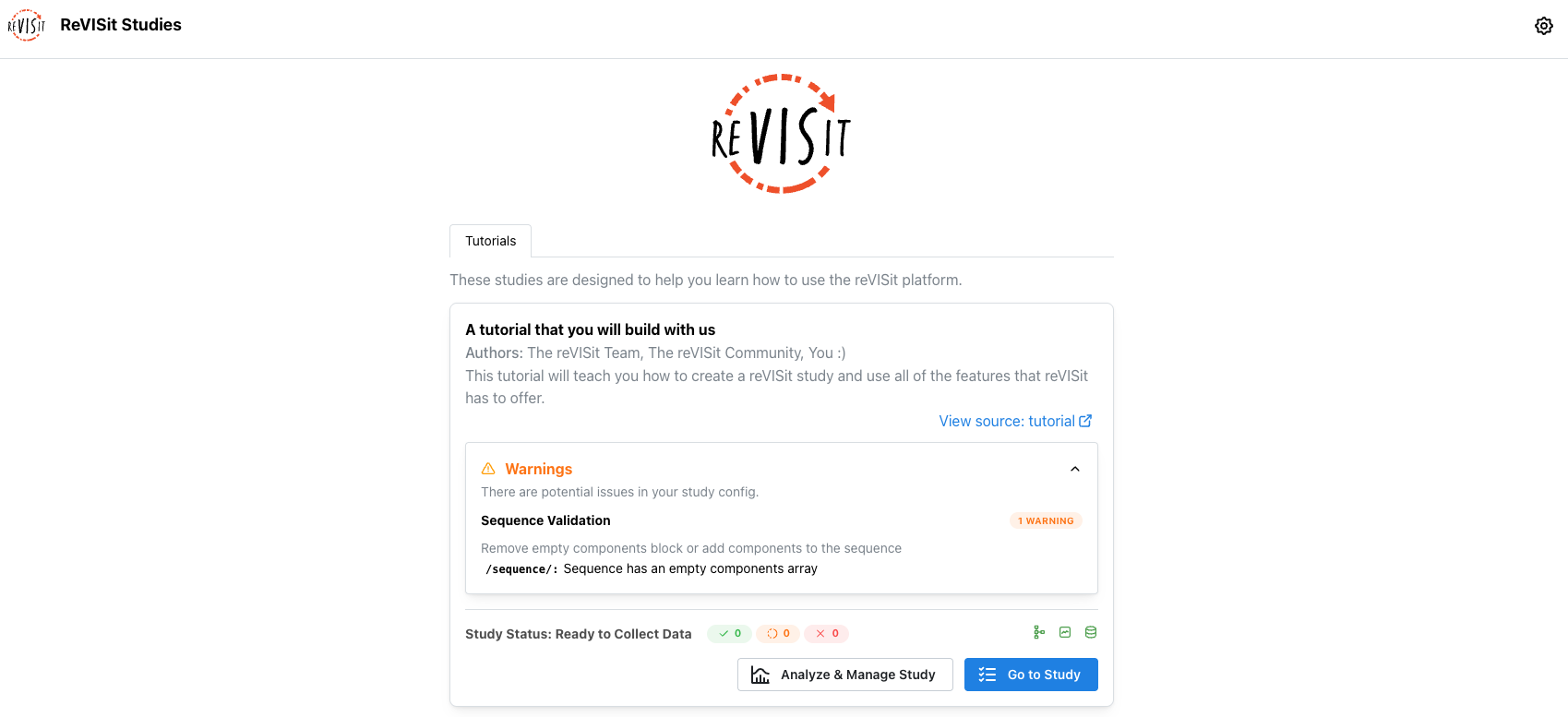
At this point, the tutorial config should show a warning that the sequence is empty. You can ignore this warning for now. It is intentional because public/tutorial/config.json currently has an empty sequence.components array. If you enter the study now, reVISit may go directly to the study end page because no components have been added to the sequence yet.
Step 2: Add the welcome component
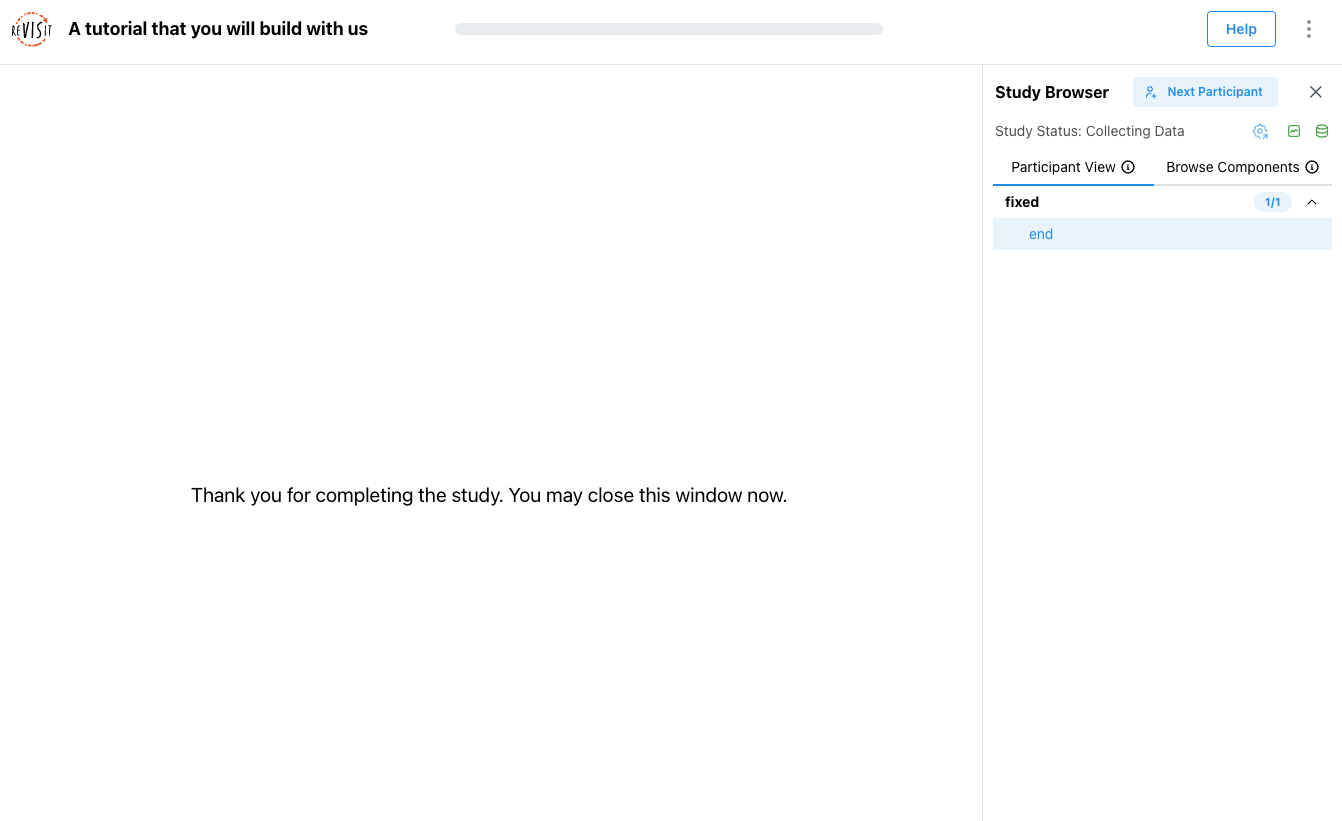
If you open the tutorial study right now, you will be directed straight to the end page, which should look like this.
Next, open public/tutorial/config.json. Inside the empty components object, add a basic Markdown component named welcome.
"components": {
  "welcome": {
    "type": "markdown",
    "path": "tutorial/assets/welcome.md",
    "response": []
  }
}
This component displays the Markdown file at public/tutorial/assets/welcome.md.
Now add welcome to the sequence:
"sequence": {
  "order": "fixed",
  "components": [
    "welcome"
  ]
}
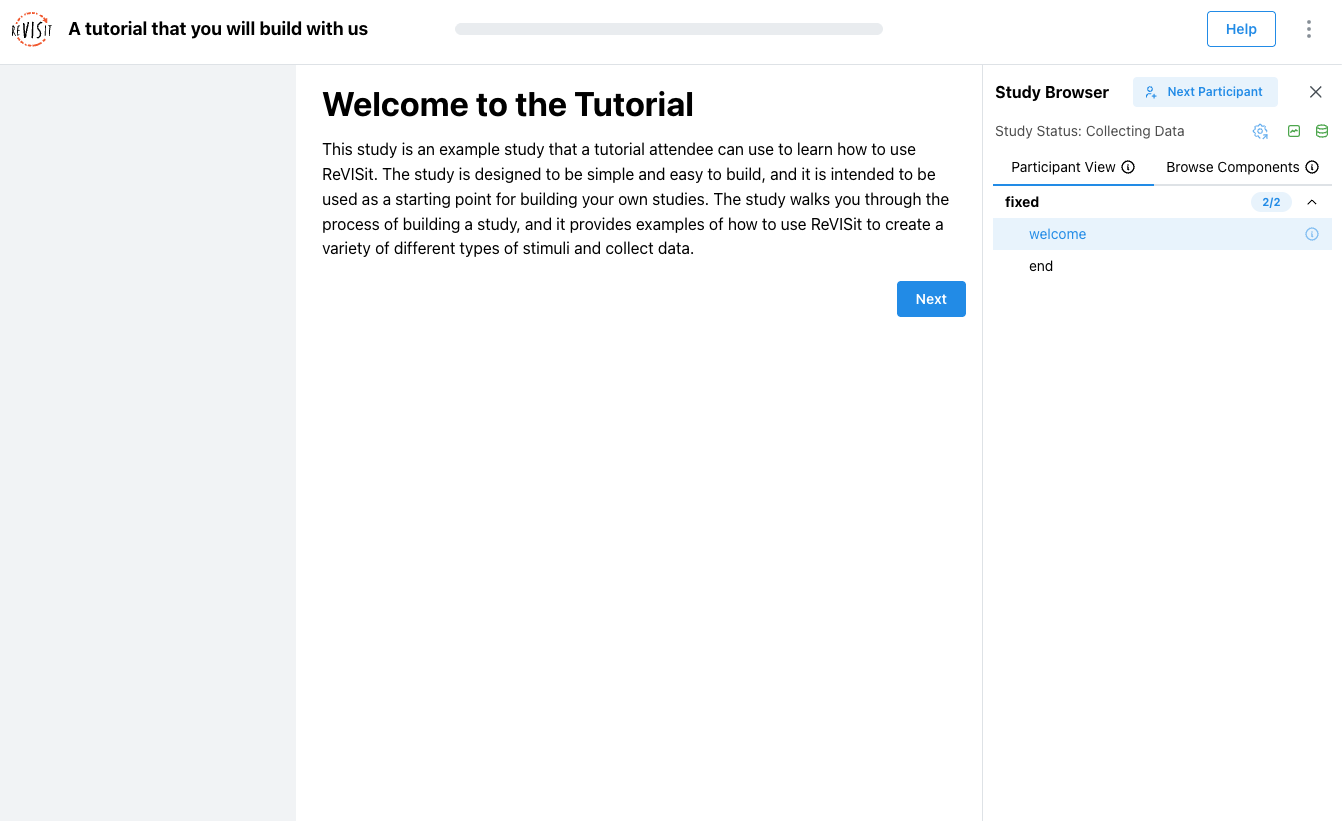
Refresh the local study or click "Next participant" to reload the Study Config and start a fresh preview. You should now see the welcome page.
A common mistake is to add the component but forget the sequence entry. If the component exists in components but is not listed in sequence.components, the component will not show up.
Step 3: Add the consent component
Next, let’s add a consent page for participants to review before starting the study. Add a comma after the welcome component, then add a second Markdown component named consent. We have already written the consent markdown in public/tutorial/assets/consent.md, so let’s use that as the path.
"components": {
  "welcome": { ... },
  "consent": {
    "type": "markdown",
    "path": "tutorial/assets/consent.md",
    "nextButtonText": "I agree",
    "response": []
  }
}
The nextButtonText field changes the text on the next button, which is useful for consent pages.
Add consent after welcome in the sequence:
"sequence": {
  "order": "fixed",
  "components": [
    "welcome",
    "consent"
  ]
}
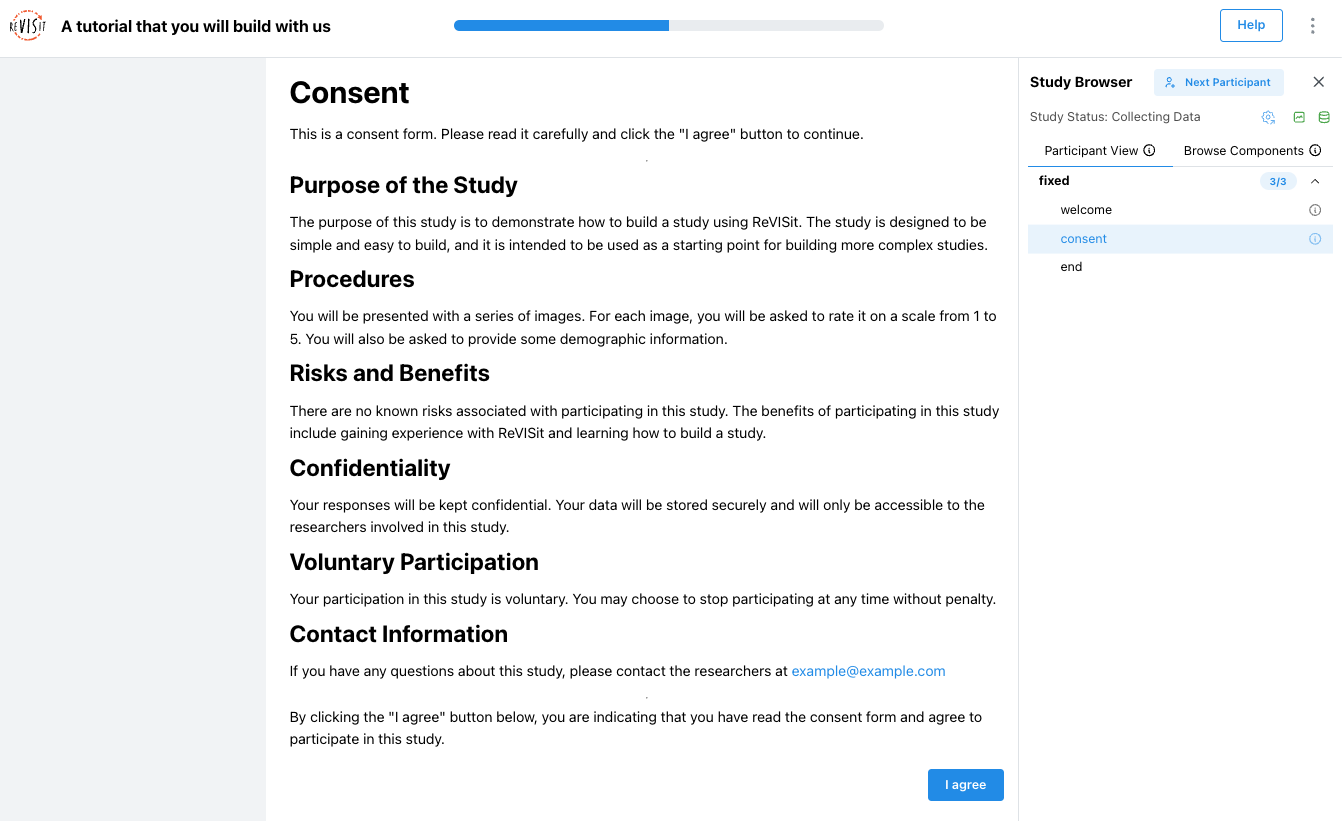
Refresh the study or click "Next participant". You should see the welcome page first, then the consent page with an "I agree" button.
Step 4: Add demographics with several form elements
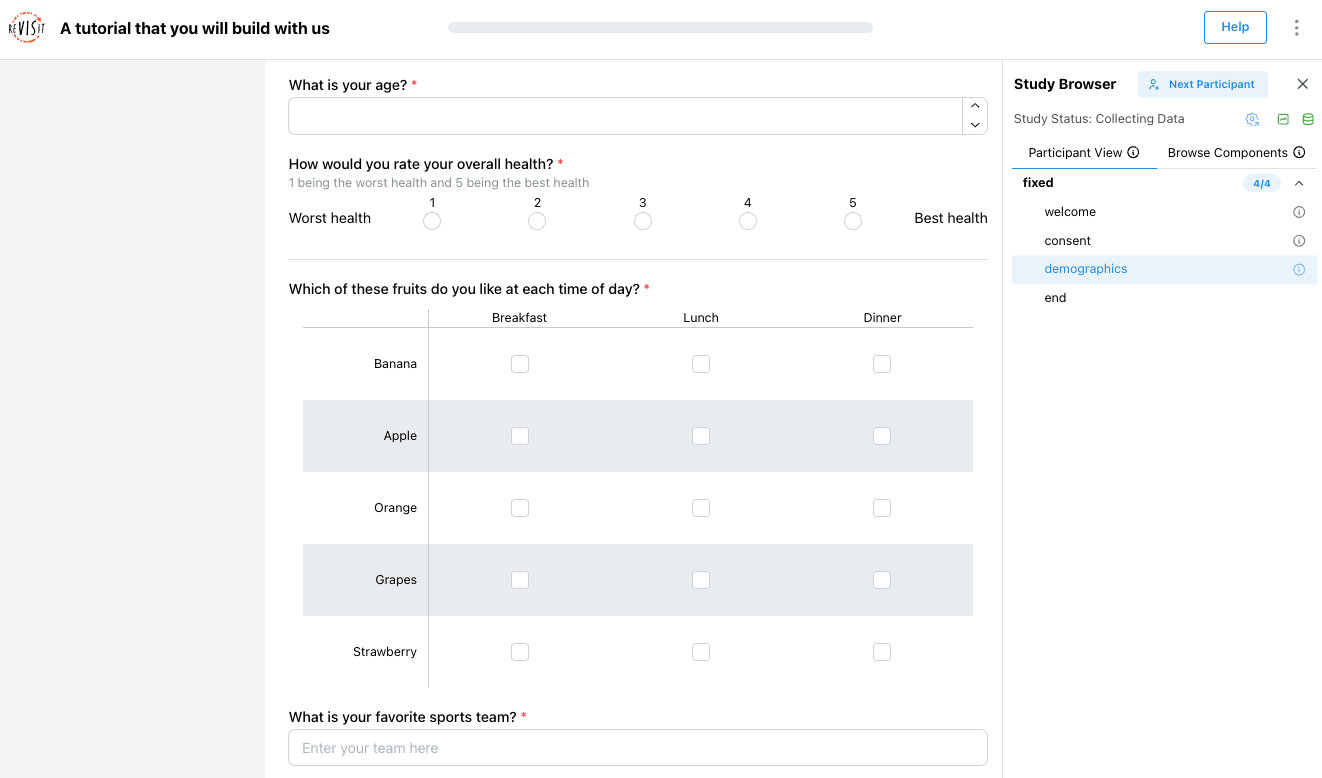
Add a questionnaire component named demographics. A questionnaire component is used to collect form-based answers from the participant, such as demographic information, survey responses, or post-task feedback.
ReVISit supports many form response types inside a questionnaire, including numerical inputs, Likert scales, dropdowns, checkboxes, sliders, dividers, and matrix questions. For the full list of available response types, see the Response reference.
"components": {
  "welcome": { ... },
  "consent": { ... },
  "demographics": {
    "type": "questionnaire",
    "response": [
      {
        "id": "age",
        "type": "numerical",
        "prompt": "What is your age?"
      },
      {
        "id": "health",
        "type": "likert",
        "prompt": "How would you rate your overall health?",
        "secondaryText": "1 being the worst health and 5 being the best health",
        "numItems": 5,
        "rightLabel": "Best health",
        "leftLabel": "Worst health"
      },
      {
        "id": "dividerResponse",
        "type": "divider",
        "location": "belowStimulus"
      },
      {
        "id": "fruits",
        "type": "matrix-checkbox",
        "prompt": "Which of these fruits do you like at each time of day?",
        "answerOptions": ["Breakfast", "Lunch", "Dinner"],
        "questionOptions": ["Banana", "Apple", "Orange", "Grapes", "Strawberry"]
      },
      {
        "id": "q-short-text",
        "type": "shortText",
        "prompt": "What is your favorite sports team?",
        "placeholder": "Enter your team here"
      },
      {
        "id": "operating-systems",
        "type": "checkbox",
        "prompt": "Which of these operating systems do you use?",
        "minSelections": 1,
        "maxSelections": 2,
        "options": ["Windows", "macOS", "Linux"],
        "withOther": true
      },
      {
        "id": "q-slider",
        "type": "slider",
        "prompt": "How would you rate this tutorial so far?",
        "secondaryText": "Your answer is not legally binding.",
        "startingValue": 50,
        "options": [
          { "label": "Bad", "value": 0 },
          { "label": "Alright", "value": 50 },
          { "label": "Good", "value": 100 }
        ]
      }
    ]
  }
}
This one component introduces several form elements: numerical input, Likert scale, divider, matrix checkbox, short text, checkbox, and slider.
Add demographics to the sequence:
"sequence": {
  "order": "fixed",
  "components": [
    "welcome",
    "consent",
    "demographics"
  ]
}
Click "Next participant" and confirm that the demographics page appears after consent.
Step 5: Add training with feedback
Now, let’s learn how to add a correct answer and provide feedback with reVISit.
Add a questionnaire component named trainingWithFeedback.
"components": {
  "welcome": { ... },
  "consent": { ... },
  "demographics": { ... },
  "trainingWithFeedback": {
    "type": "questionnaire",
    "response": [
      {
        "id": "training",
        "type": "radio",
        "prompt": "Yes is the correct answer, click it",
        "options": ["Yes", "No"]
      }
    ],
    "correctAnswer": [
      {
        "id": "training",
        "answer": "Yes"
      }
    ],
    "provideFeedback": true,
    "trainingAttempts": 2,
    "allowFailedTraining": false,
    "nextButtonDisableTime": 5000
  }
}
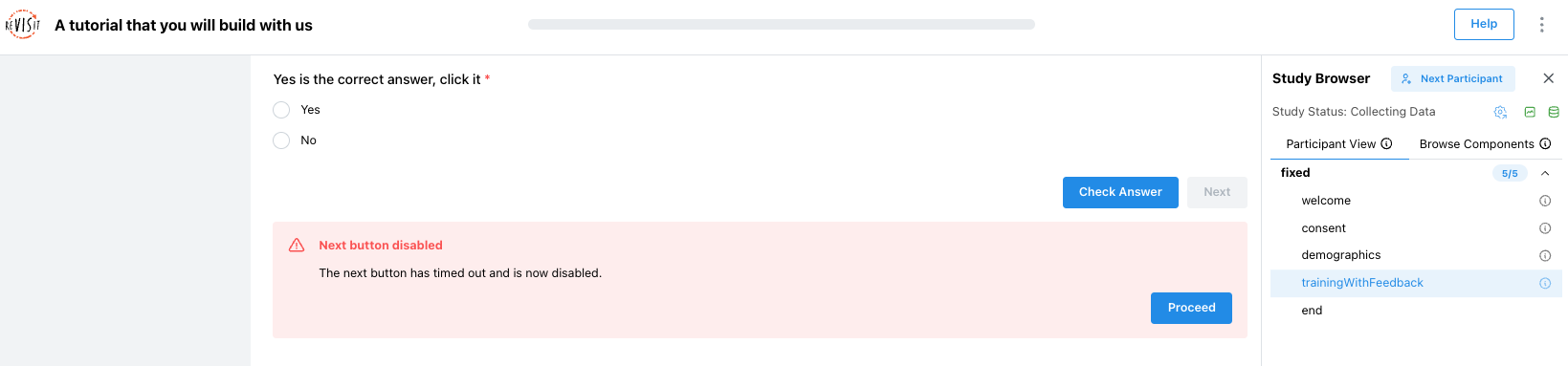
correctAnswersays which answer is correct. Theidmust match the response id,training.provideFeedback: truetells reVISit to show feedback after the participant answers.trainingAttempts: 2gives the participant two attempts.allowFailedTraining: falseprevents the participant from continuing after failing the allowed attempts.nextButtonDisableTime: 5000disables the next button after 5 seconds.
Add trainingWithFeedback to the sequence after demographics.
"sequence": {
  "order": "fixed",
  "components": [
    "welcome",
    "consent",
    "demographics",
    "trainingWithFeedback"
  ]
}
When you preview this page, the next button becomes a Check answer button. If the participant answers incorrectly twice, reVISit stops them from continuing. If they answer correctly, they can move forward.
Step 6: Add the coin image component
In this step, we will add an image component named coinImage.
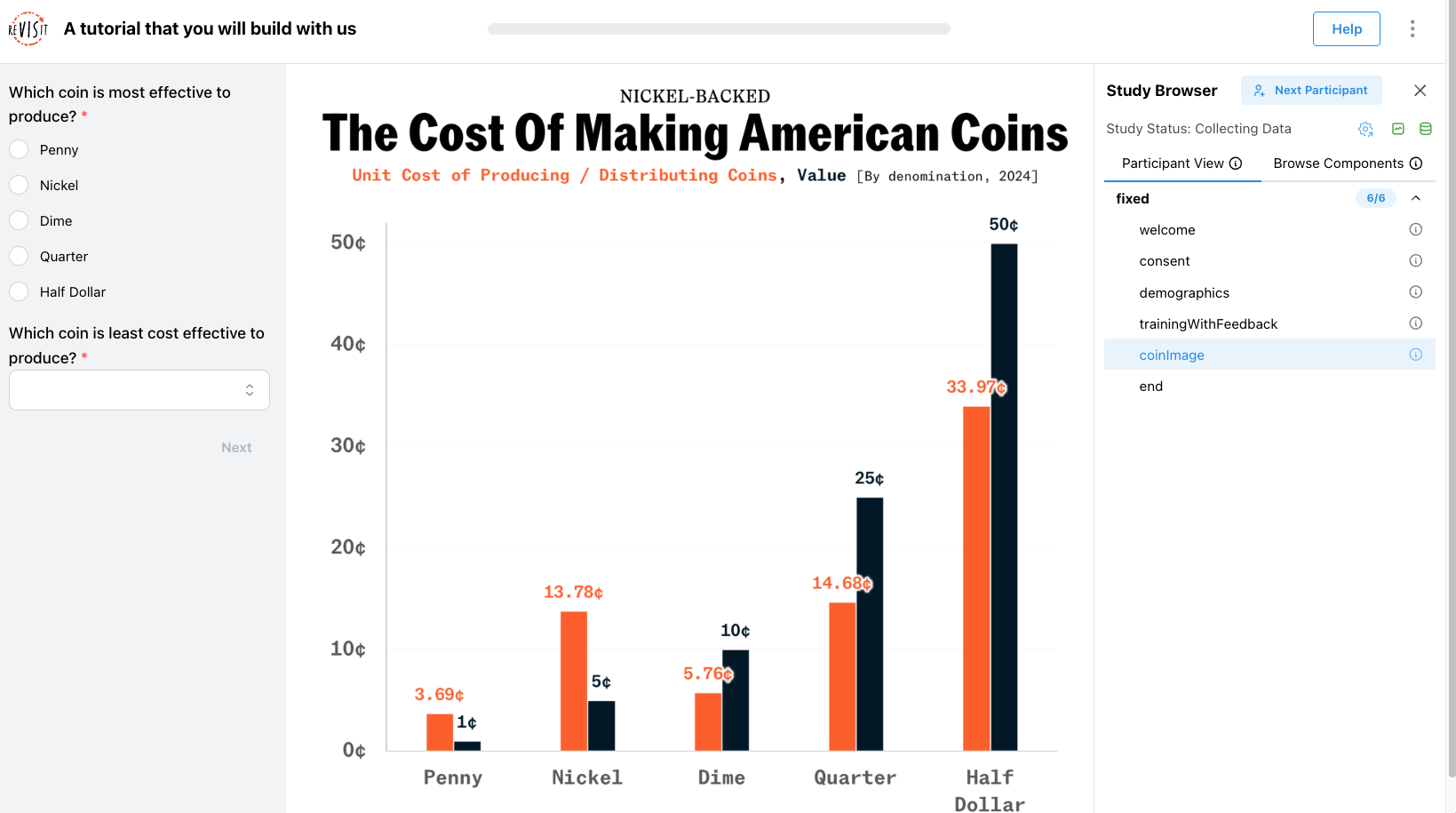
The image file is already available at public/tutorial/assets/coins.png. It shows the cost of making American coins.
Let’s add two questions in the sidebar to check whether participants can interpret the graph correctly.
"components": {
  "welcome": { ... },
  "consent": { ... },
  ...,
  "trainingWithFeedback": { ... },
  "coinImage": {
    "type": "image",
    "path": "tutorial/assets/coins.png",
    "nextButtonLocation": "sidebar",
    "response": [
      {
        "id": "cost-effective",
        "type": "radio",
        "prompt": "Which coin is most effective to produce?",
        "location": "sidebar",
        "options": ["Penny", "Nickel", "Dime", "Quarter", "Half Dollar"]
      },
      {
        "id": "cost-ineffective",
        "type": "dropdown",
        "prompt": "Which coin is least cost effective to produce?",
        "location": "sidebar",
        "options": ["Penny", "Nickel", "Dime", "Quarter", "Half Dollar"]
      }
    ]
  }
}
Add coinImage to the sequence after trainingWithFeedback.
"sequence": {
  "order": "fixed",
  "components": [
    "welcome",
    "consent",
    "demographics",
    "trainingWithFeedback",
    "coinImage"
  ]
}
Step 7: Add Vega components
Now, let’s try adding a Vega stimulus, which is one of the most popular visualization tools.
There are two ways to add a Vega component in reVISit: you can link to a separate Vega spec file from the Study Config or you can define the Vega spec directly in the Study Config.
Linking Vega specs in the Study Config
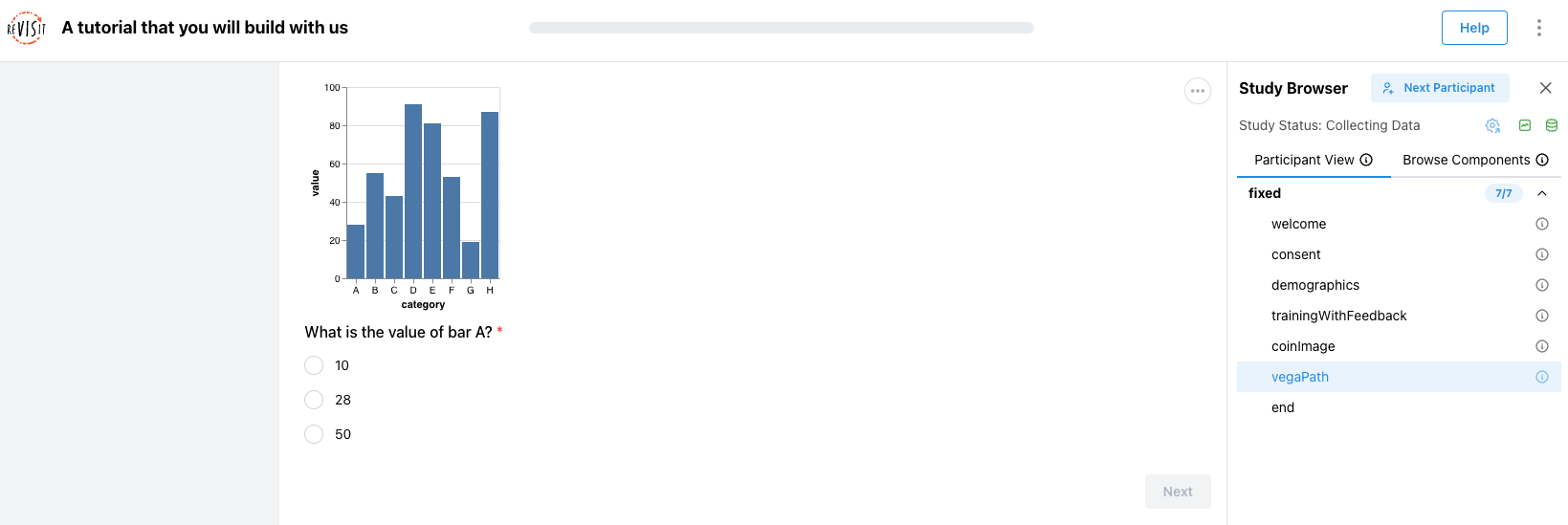
Add vegaPath, which loads a Vega chart from a separate file. In this tutorial, we will use public/tutorial/assets/simpleChart.json.
"components": {
  "welcome": { ... },
  "consent": { ... },
  ...,
  "coinImage": { ... },
  "vegaPath": {
    "type": "vega",
    "path": "tutorial/assets/simpleChart.json",
    "response": [
      {
        "id": "simple-vega",
        "type": "radio",
        "prompt": "What is the value of bar A?",
        "options": ["10", "28", "50"]
      }
    ]
  }
}
Add vegaPath to the sequence.
"sequence": {
  "order": "fixed",
  "components": [
    "welcome",
    "consent",
    "demographics",
    "trainingWithFeedback",
    "coinImage",
    "vegaPath"
  ]
}
Adding Vega specs directly to the Study Config
Then add vegaConfig, which puts the Vega-Lite chart definition directly in the Study Config.
"components": {
  "welcome": { ... },
  "consent": { ... },
  ...,
  "vegaPath": { ... },
  "vegaConfig": {
    "type": "vega",
    "config": {
      "$schema": "https://vega.github.io/schema/vega-lite/v5.json",
      "description": "A simple bar chart with embedded data.",
      "data": {
        "values": [
          { "category": "A", "value": 28 },
          { "category": "B", "value": 55 },
          { "category": "C", "value": 43 }
        ]
      },
      "mark": "bar",
      "encoding": {
        "x": {
          "field": "category",
          "type": "nominal",
          "axis": { "labelAngle": 0 }
        },
        "y": {
          "field": "value",
          "type": "quantitative"
        }
      }
    },
    "response": [
      {
        "id": "dynamic-vega",
        "type": "radio",
        "prompt": "What is the value of bar A?",
        "options": ["10", "28", "50"]
      }
    ]
  }
}
Add vegaConfig to the sequence.
"sequence": {
  "order": "fixed",
  "components": [
    "welcome",
    "consent",
    "demographics",
    "trainingWithFeedback",
    "coinImage",
    "vegaPath",
    "vegaConfig"
  ]
}
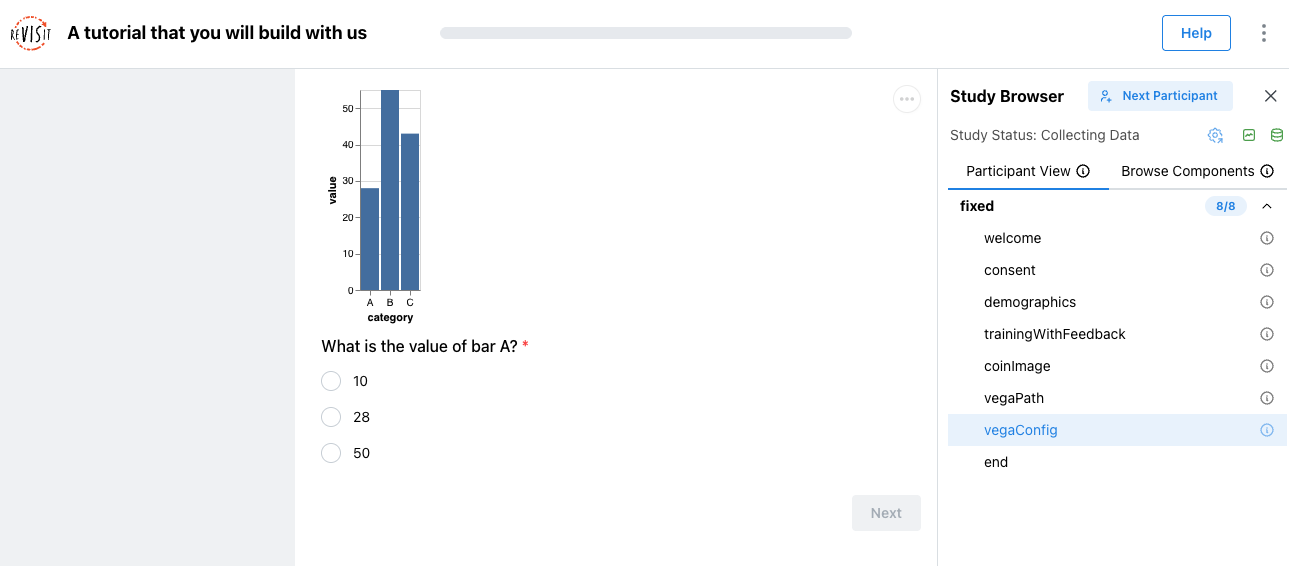
To learn more about Vega components, see the Vega stimulus docs. Use path when the visualization specification is easier to maintain in its own file. Use config when the chart is small enough to keep directly inside the Study Config.
Step 8: Add reactive Vega
Now that we have learned how to add a Vega component to the config, let’s try something a little more interactive.
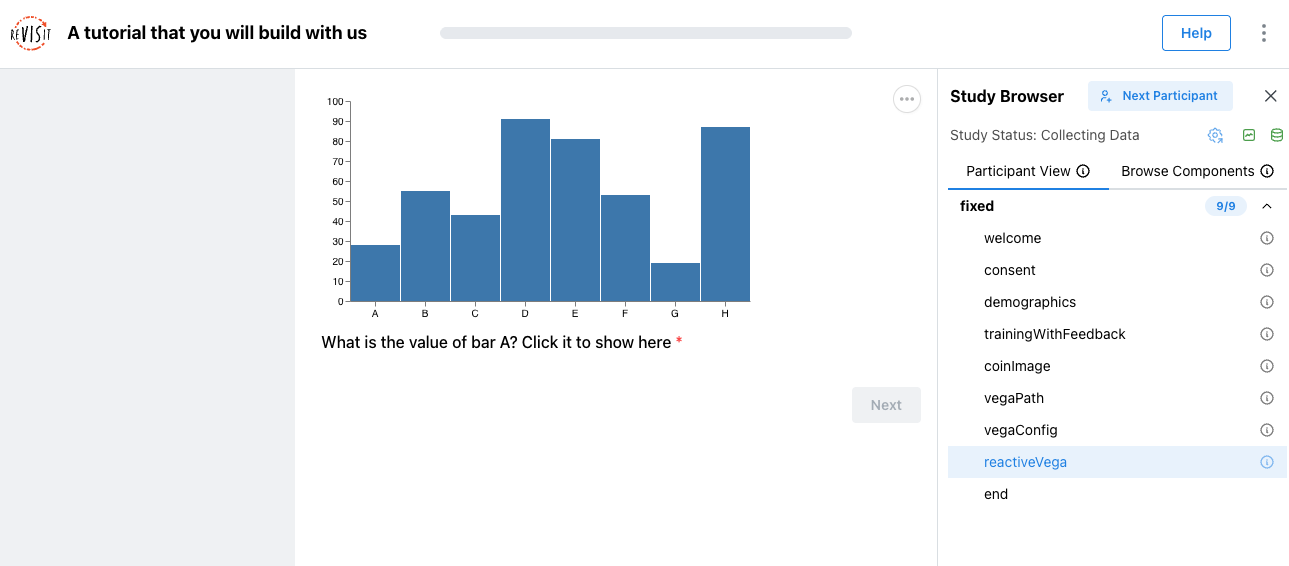
We will add a reactive Vega stimulus using reactive.json. A reactive response records an interaction from the visualization itself. In this example, the participant clicks a mark in the Vega chart, and that interaction becomes the response.
This works through the reserved Vega signal name revisitAnswer. When the participant clicks a bar in the chart, Vega updates the revisitAnswer signal, and reVISit records that interaction as a response. To learn more about handling user interactions in Vega components, see the Vega stimulus docs.
Add reactiveVega to the components.
"components": {
  "welcome": { ... },
  "consent": { ... },
  ...,
  "vegaConfig": { ... },
  "reactiveVega": {
    "type": "vega",
    "path": "tutorial/assets/reactive.json",
    "response": [
      {
        "id": "reactiveResponse",
        "type": "reactive",
        "prompt": "What is the value of bar A? Click it to show here"
      }
    ]
  }
}
Add reactiveVega to the sequence.
"sequence": {
  "order": "fixed",
  "components": [
    ...,
    "vegaConfig",
    "reactiveVega"
  ]
}
Step 9: Add website components
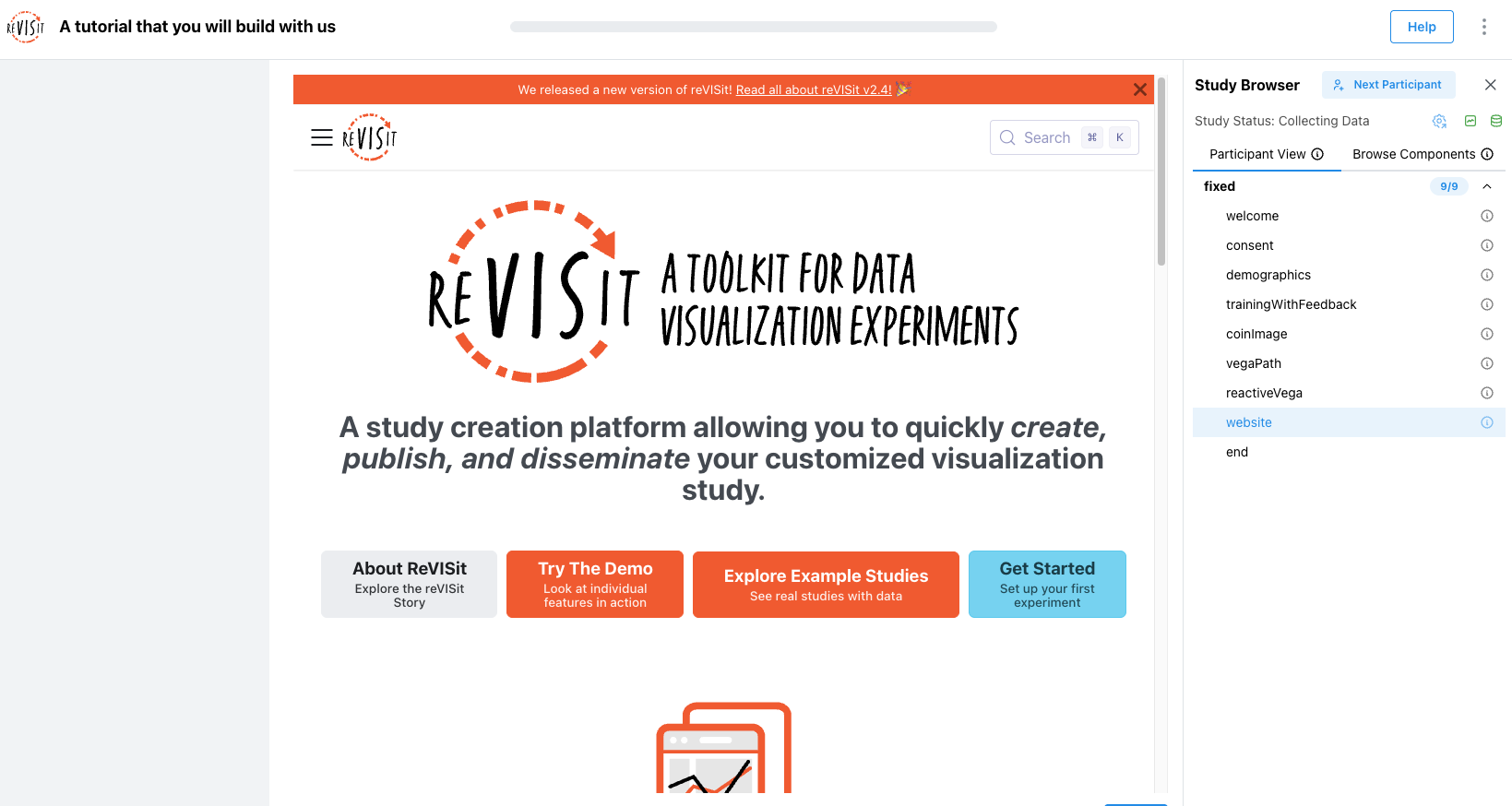
We can also embed a website in reVISit by adding a website component. This displays the web page inside the study as an iframe.
"components": {
  "welcome": { ... },
  "consent": { ... },
  ...,
  "reactiveVega": { ... },
  "website": {
    "type": "website",
    "path": "https://revisit.dev",
    "response": []
  }
}
This is useful when a study asks participants to inspect a website or web-based visualization.
Add website to the sequence.
"sequence": {
  "order": "fixed",
  "components": [
    ...,
    "reactiveVega",
    "website"
  ]
}
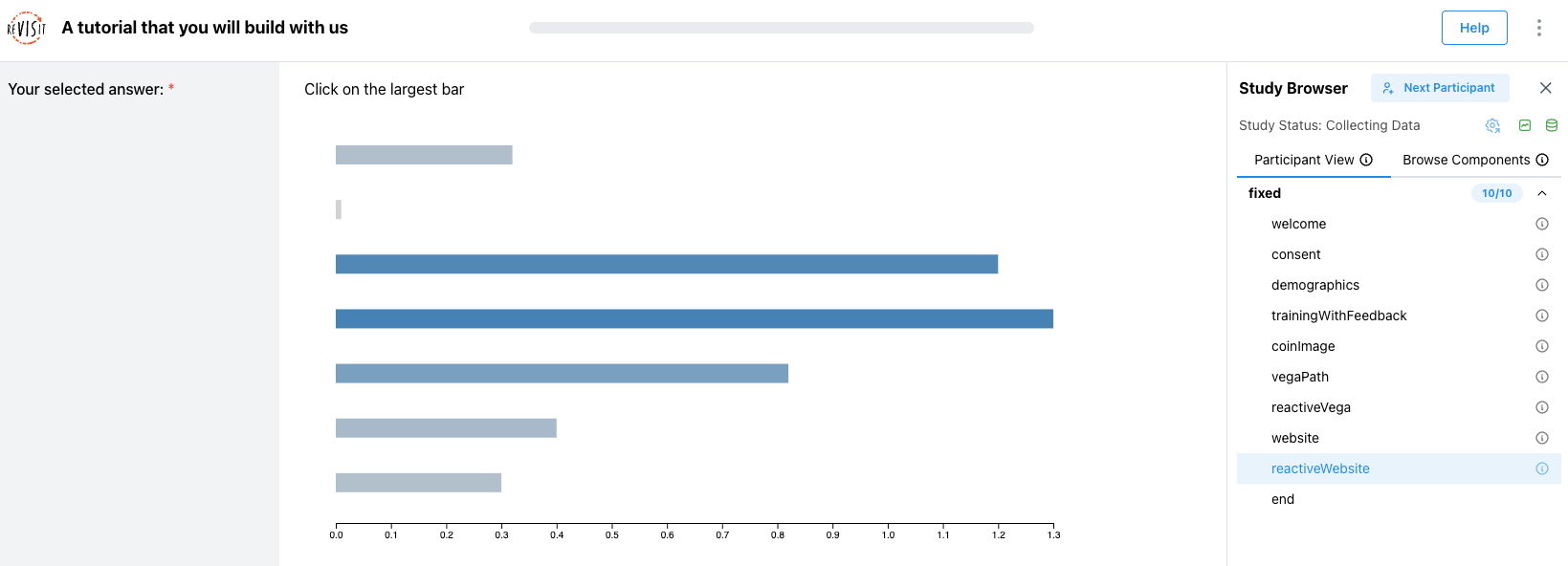
Like we did for Vega, we can also add a reactive website component. Next, add a reactive website named reactiveWebsite. This time, we will use the prewritten bar-chart-interaction.html.
"components": {
  "welcome": { ... },
  "consent": { ... },
  ...,
  "website": { ... },
  "reactiveWebsite": {
    "type": "website",
    "path": "tutorial/assets/bar-chart-interaction.html",
    "instructionLocation": "aboveStimulus",
    "description": "A trial for the user to click the largest bar",
    "instruction": "Click on the largest bar",
    "response": [
      {
        "id": "barChart",
        "prompt": "Your selected answer:",
        "location": "sidebar",
        "type": "reactive"
      }
    ],
    "parameters": {
      "barData": [0.32, 0.01, 1.2, 1.3, 0.82, 0.4, 0.3]
    }
  }
}
This component loads a local HTML page and passes barData into it through parameters. The page uses those values to render the chart. Because the response is reactive, the HTML page can send the participant’s selection back to reVISit with Revisit.postAnswers.
To learn more about designing an HTML stimulus like this, see the HTML stimulus documentation.
Add reactiveWebsite to the sequence after website.
"sequence": {
  "order": "fixed",
  "components": [
    ...,
    "website",
    "reactiveWebsite"
  ]
}
Step 10: Add reactExampleCars
Now, let’s try using a React component. React components are useful when you want to build custom interactive stimuli that go beyond the built-in image, website, Markdown, or Vega components. They can also integrate with reVISit features such as provenance tracking, so participant interactions can be recorded and replayed later.
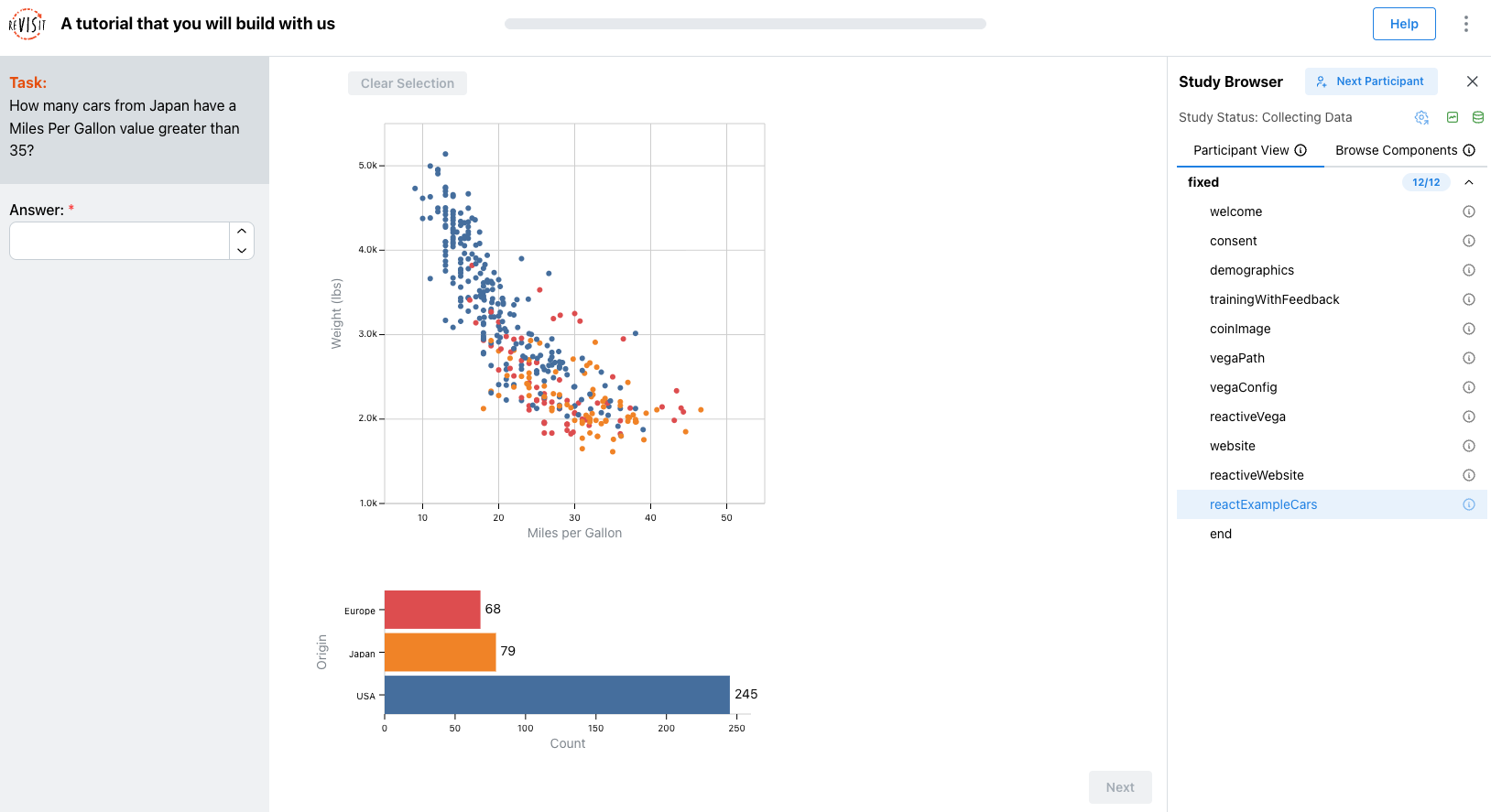
We have already written ReactExample.tsx, which renders an interactive brushing visualization and saves the brush interaction history with provenance tracking.
Add the first React component trial.
"components": {
  "welcome": { ... },
  "consent": { ... },
  ...,
  "reactiveWebsite": { ... },
  "reactExampleCars": {
    "type": "react-component",
    "path": "tutorial/assets/ReactExample.tsx",
    "instruction": "How many cars from Japan have a Miles Per Gallon value greater than 35?",
    "response": [
      {
        "id": "response",
        "prompt": "Answer:",
        "location": "sidebar",
        "type": "numerical",
        "max": 100,
        "min": 0
      }
    ],
    "correctAnswer": [
      {
        "id": "response",
        "answer": 17
      }
    ],
    "parameters": {
      "dataset": "cars",
      "x": "Miles per Gallon",
      "y": "Weight (lbs)",
      "category": "Origin",
      "ids": "id",
      "brushType": "Rectangular Selection"
    }
  }
}
ReactExample.tsx uses BrushPlotWrapper.tsx, which wraps the existing brush plot implementation from example-brush-interactions/assets.
For this trial, the component loads cars.csv, a dataset about car models, fuel efficiency, weight, year, and origin. The parameters object tells the React component which dataset to load and which fields to use for the visualization. In this example, the scatterplot uses Miles per Gallon on the x-axis, Weight (lbs) on the y-axis, and Origin as the category.
To learn more, see the React stimulus documentation.
Add reactExampleCars to the sequence.
"sequence": {
  "order": "fixed",
  "components": [
    ...,
    "reactiveWebsite",
    "reactExampleCars"
  ]
}
Try dragging a selection around points in the scatterplot; the selected points will be highlighted, and the bar chart below will update to show counts for the selected cars.
Step 11: Add reactExamplePenguins
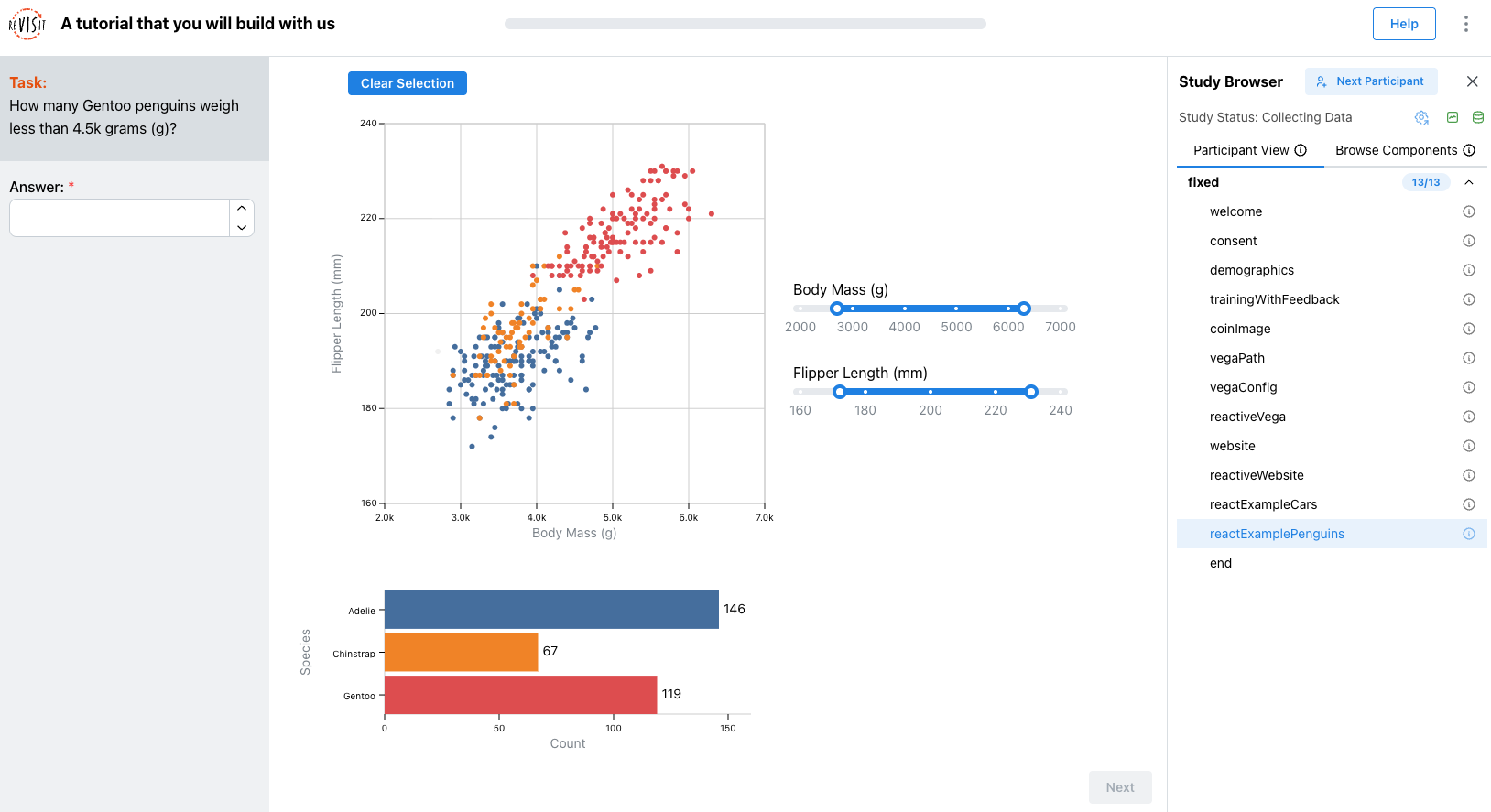
Next, let’s reuse the same React component for a different dataset and interaction style. This trial still renders ReactExample.tsx, but the parameters object tells it to load the penguin dataset instead of the car dataset.
In this example, the scatterplot uses Body Mass (g) on the x-axis, Flipper Length (mm) on the y-axis, and Species as the category. We also switch the brushType to Slider Selection, so participants can use a slider-style interaction instead of drawing a rectangular brush.
Add a second React component trial named reactExamplePenguins.
"components": {
  "welcome": { ... },
  "consent": { ... },
  ...,
  "reactExampleCars": { ... },
  "reactExamplePenguins": {
    "type": "react-component",
    "path": "tutorial/assets/ReactExample.tsx",
    "instruction": "How many Gentoo penguins weigh less than 4.5k grams (g)?",
    "response": [
      {
        "id": "response",
        "prompt": "Answer:",
        "location": "sidebar",
        "type": "numerical",
        "max": 100,
        "min": 0
      }
    ],
    "correctAnswer": [
      {
        "id": "response",
        "answer": 15
      }
    ],
    "parameters": {
      "dataset": "penguin",
      "x": "Body Mass (g)",
      "y": "Flipper Length (mm)",
      "category": "Species",
      "ids": "id",
      "brushType": "Slider Selection"
    }
  }
}
This step shows why parameters are useful. The Study Config can reuse the same React component while changing the task, dataset, fields, and interaction style.
Add reactExamplePenguins to the sequence.
"sequence": {
  "order": "fixed",
  "components": [
    ...,
    "reactExampleCars",
    "reactExamplePenguins"
  ]
}
Try moving the slider handles to filter the scatterplot. The selected points will update, and the bar chart below will show the species counts for the current selection.
Step 12: Add questionnaire examples: example1 and example2
Next, let's add two simple questionnaire components.
These components are intentionally simple. You will reuse them in the interruption examples in the next step.
"components": {
  "welcome": { ... },
  "consent": { ... },
  ...,
  "reactExamplePenguins": { ... },
  "example1": {
    "type": "questionnaire",
    "response": [
      {
        "id": "q-example-1",
        "type": "shortText",
        "prompt": "Example question"
      }
    ]
  },
  "example2": {
    "type": "questionnaire",
    "response": [
      {
        "id": "q-example-2",
        "type": "dropdown",
        "prompt": "Example question",
        "options": ["Option 1", "Option 2"]
      }
    ]
  }
}
You do not need to add example1 and example2 to the sequence yet. We will use them in the next step.
Step 13: Add attention checks and interruptions
Attention checks and interruptions help you add quality-control moments without rewriting the main study flow. An attention check can catch participants who are not reading carefully, while an interruption can insert a check, break, or reminder between normal tasks.
A sequence block can be fixed, random, or latinSquare. A fixed block shows components in the order you list them. A random block shuffles the components for each participant. A Latin square block balances ordering across participants. See the study sequence guide for more sequence patterns.
You can also nest sequence blocks. For example, the following sequence keeps welcome and consent fixed, then randomizes later tasks:
"sequence": {
  "order": "fixed",
  "components": [
    "welcome",
    "consent",
    {
      "id": "randomizedTasks",
      "order": "random",
      "components": [
        "coinImage",
        "vegaPath",
        "reactiveVega"
      ]
    }
  ]
}
First, add an attentionCheck component.
"components": {
  "welcome": { ... },
  "consent": { ... },
  ...,
  "example2": { ... },
  "attentionCheck": {
    "type": "questionnaire",
    "response": [
      {
        "id": "q-example-2",
        "type": "dropdown",
        "prompt": "Attention check question",
        "options": ["Option 1", "Option 2"]
      }
    ]
  }
}
Then add a deterministic interruption block to the sequence. In this example, the interruptions block starts inserting attentionCheck at firstLocation: 0, then repeats it every spacing: 2 components.
"sequence": {
  "order": "fixed",
  "components": [
    "welcome",
    "consent",
    ...,
    "reactExamplePenguins",
    {
      "id": "attentionDeterministic",
      "order": "fixed",
      "components": [
        "example1",
        "example2",
        "example1",
        "example2"
      ],
      "interruptions": [
        {
          "firstLocation": 0,
          "spacing": 2,
          "components": [
            "attentionCheck"
          ]
        }
      ]
    }
  ]
}
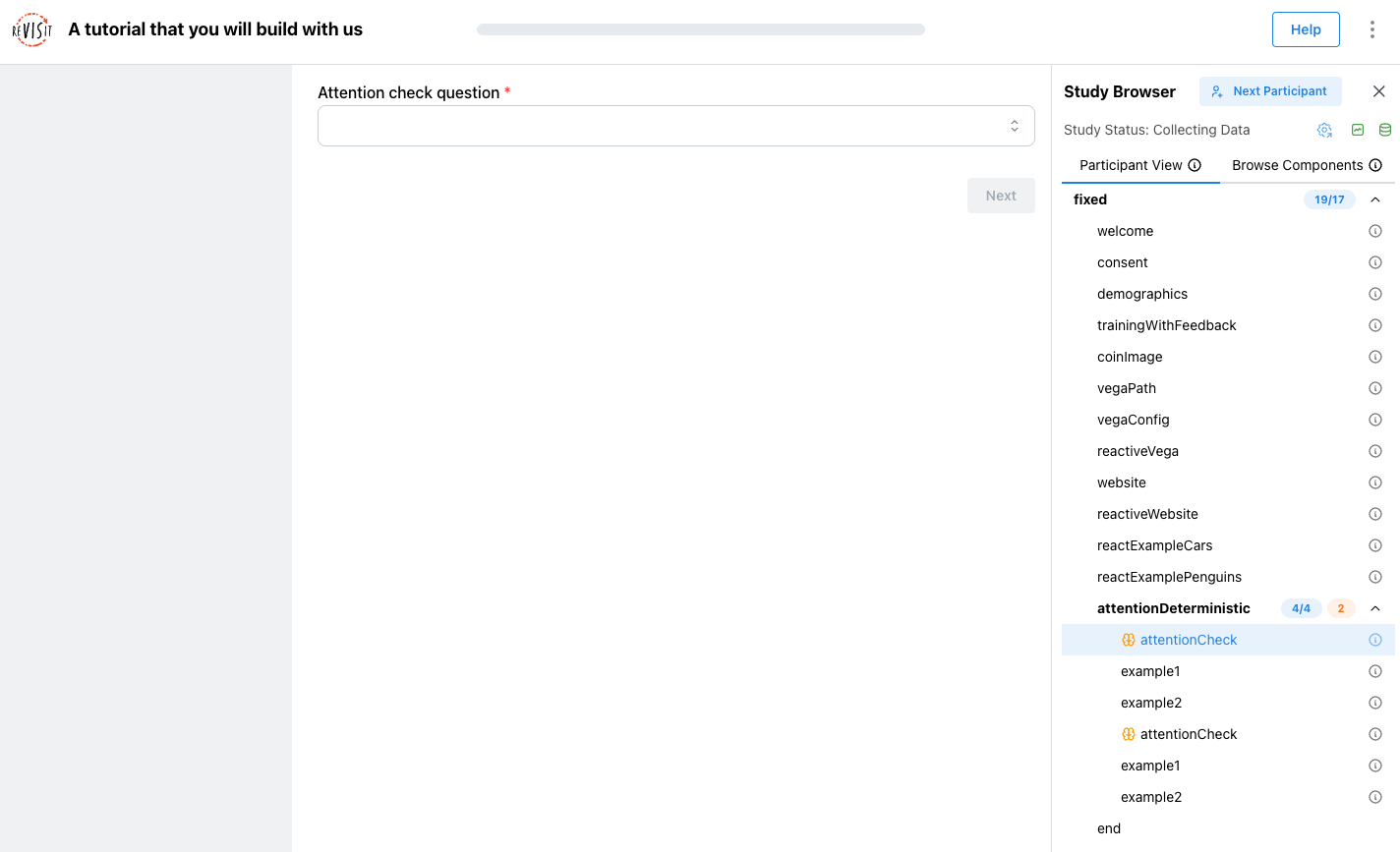
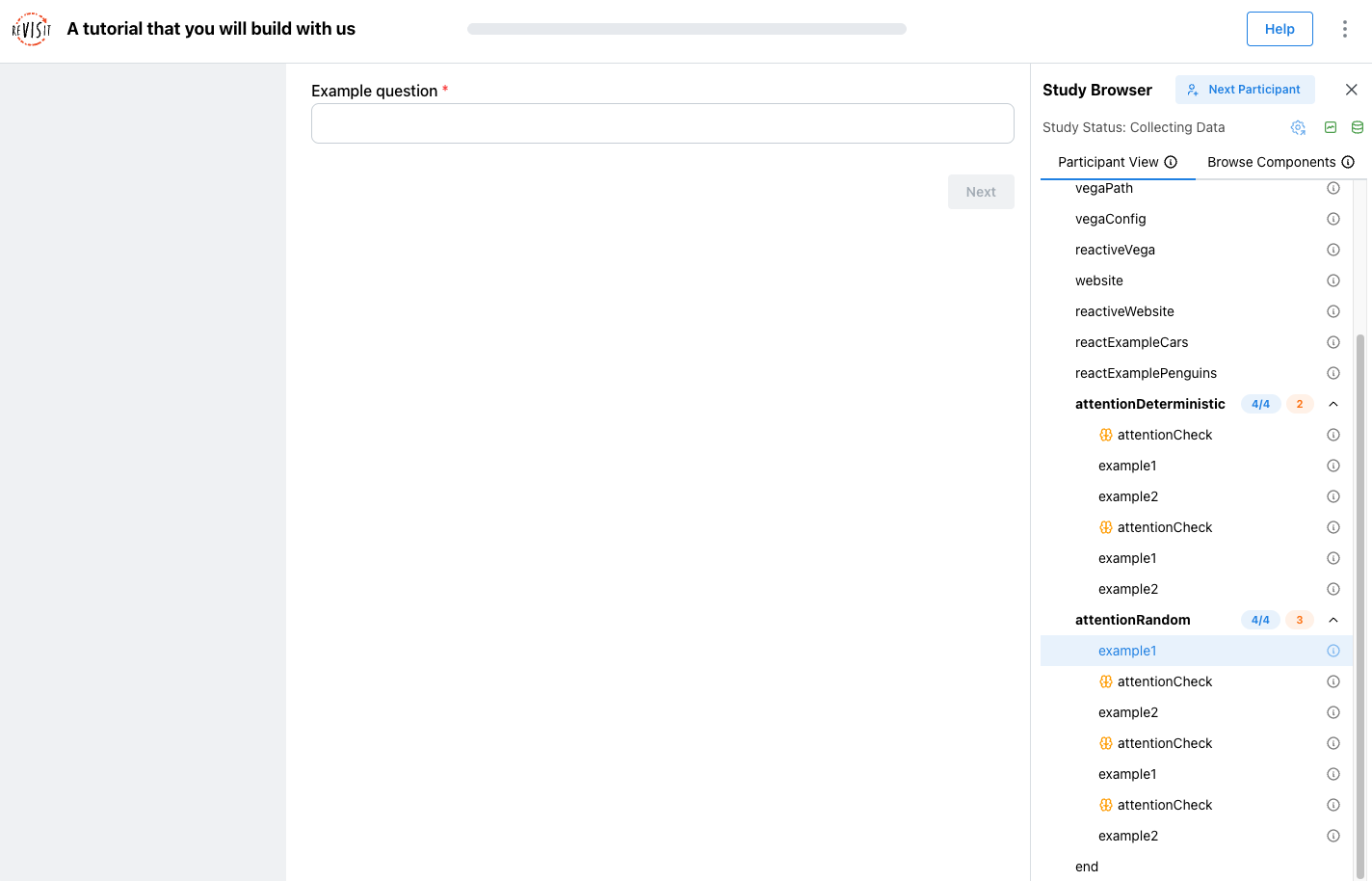
Now add a random interruption block. Instead of placing the interruption at a fixed interval, this version uses "spacing": "random" and numInterruptions to choose how many times the attention check should appear within the block.
"sequence": {
  "order": "fixed",
  "components": [
    "welcome",
    "consent",
    ...,
    {
      "id": "attentionRandom",
      "order": "fixed",
      "components": [
        "example1",
        "example2",
        "example1",
        "example2"
      ],
      "interruptions": [
        {
          "spacing": "random",
          "numInterruptions": 3,
          "components": [
            "attentionCheck"
          ]
        }
      ]
    }
  ]
}
Step 14: Add skip logic
Skip logic lets a study respond to a participant's answer. You can use it to branch around questions that do not apply, end a block when someone fails an attention check, or send participants to a follow-up task. The exact skip condition shapes are listed in SkipConditions.
First, add exampleWithAnswer.
"components": {
  "welcome": { ... },
  "consent": { ... },
  ...,
  "attentionCheck": { ... },
  "exampleWithAnswer": {
    "type": "questionnaire",
    "response": [
      {
        "id": "q-example-1",
        "type": "numerical",
        "prompt": "What is 2 + 2?"
      }
    ]
  }
}
Then add a skip block to the sequence:
"sequence": {
  "order": "fixed",
  "components": [
    "welcome",
    "consent",
    ...,
    {
      "id": "skipResponse",
      "order": "fixed",
      "components": [
        "exampleWithAnswer",
        "example1"
      ],
      "skip": [
        {
          "name": "exampleWithAnswer",
          "check": "response",
          "responseId": "q-example-1",
          "value": 4,
          "comparison": "notEqual",
          "to": "end"
        }
      ]
    }
  ]
}
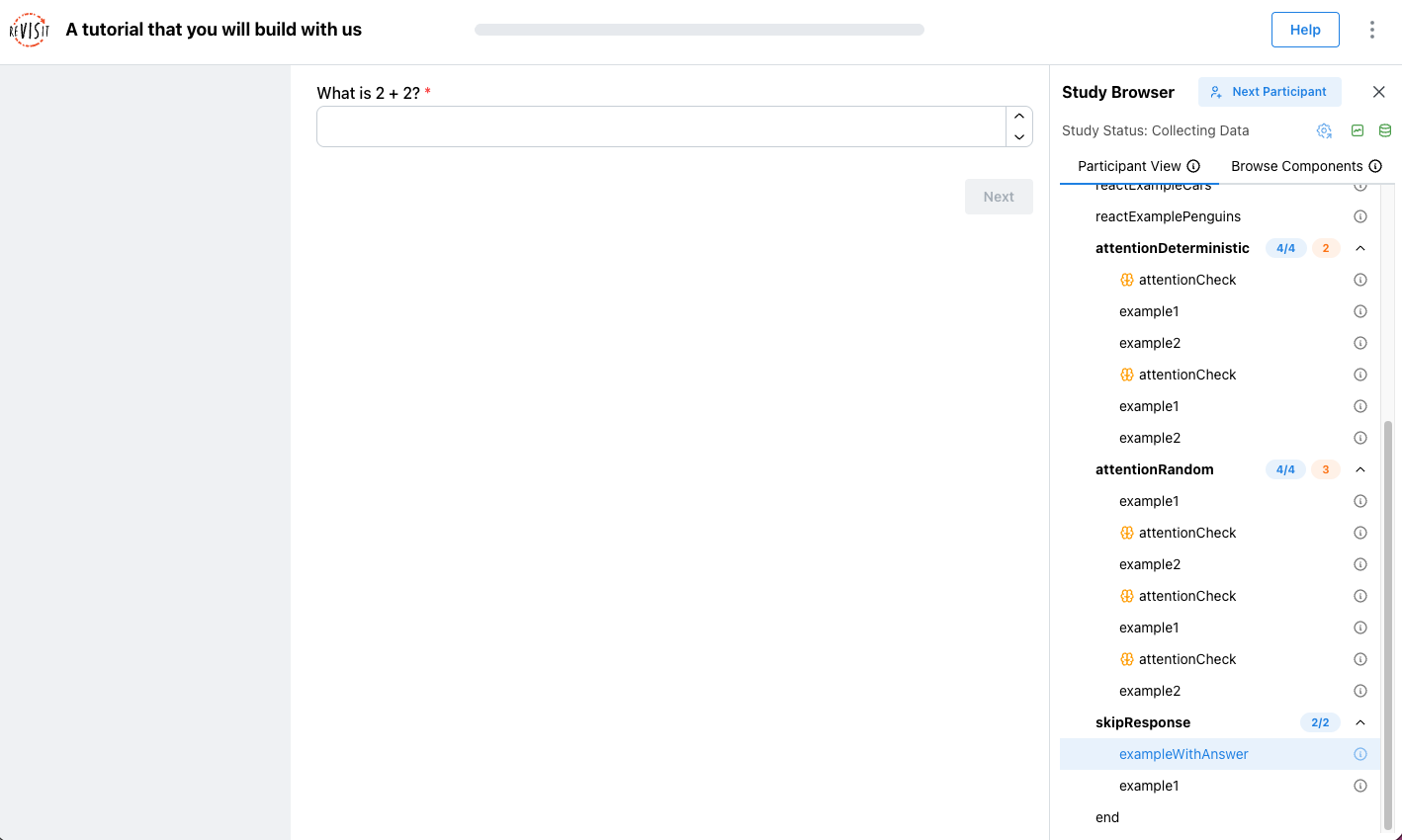
This block asks the participant, “What is 2 + 2?” If the response is not equal to 4, reVISit skips to the end of the study. If the response is 4, the participant continues to example1.
The responseId must match the response id inside exampleWithAnswer.
Step 15: Add the microphone library and audio settings
Finally, add the microphone check library and turn on audio recording for the study. This is useful for running Think Aloud studies, where participants speak their thoughts while completing tasks. To learn more, see the Think Aloud documentation.
Add importedLibraries after studyMetadata:
"studyMetadata": {
  ...
},
"importedLibraries": [
  "mic-check"
],
"uiConfig": {
  ...
}
Then add recordAudio to uiConfig:
"uiConfig": {
  "contactEmail": "contact@revisit.dev",
  "helpTextPath": "tutorial/assets/help.md",
  "logoPath": "revisitAssets/revisitLogoSquare.svg",
  "withProgressBar": true,
  "autoDownloadStudy": false,
  "withSidebar": true,
  "recordAudio": true
}
Add the microphone check component to the sequence after consent:
"sequence": {
  "order": "fixed",
  "components": [
    "welcome",
    "consent",
    "$mic-check.components.audioTest",
    "demographics",
    ...
  ]
}
The ${library-name}.components.{componentName} syntax references a component defined in an imported library. The $ prefix tells reVISit to look up the component in the library namespace rather than in your local components object. The same syntax works for sequences: ${library-name}.sequences.{sequenceName}.
uiConfig.recordAudio turns on audio recording for the whole study. If you want to turn off audio recording for specific parts, such as the welcome and consent pages, you can also add "recordAudio": false at the component level to turn off audio recording for specific components.
"components": {
  "welcome": {
    "type": "markdown",
    "path": "tutorial/assets/welcome.md",
    "response": [],
    "recordAudio": false
  },
  "consent": {
    "type": "markdown",
    "path": "tutorial/assets/consent.md",
    "nextButtonText": "I agree",
    "response": [],
    "recordAudio": false
  },
  ...
}