Remote Usability Testing of Figma Prototypes with reVISit
Scheduling one-on-one usability sessions is time-consuming, expensive, and hard to scale. With reVISit's screen recording and think-aloud audio features, you can run instrumented prototype studies asynchronously — participants navigate your Figma prototype while their screen and voice are captured, and you can run multiple participants at once!
Why Test Figma Prototypes with reVISit?
Usability testing can be difficult. You have to track people down, schedule a time for the session, and repeat for each user. Remote testing, e.g., via Zoom, is possible, but still requires you to be online at the same time.
ReVISit now offers an alternative through its new screen recording and audio think-aloud features. Because Figma provides shareable embed URLs for interactive prototypes, you can drop one directly into a reVISit website component using iframes — with very little coding needed. Layering on "recordScreen": true and "recordAudio": true gives you:
- Screen recordings of every participant's navigation path through the prototype
- Synchronized think-aloud audio so you can hear their reasoning alongside what they see
- Structured questionnaires before and after the prototype task — in the same study, same dataset
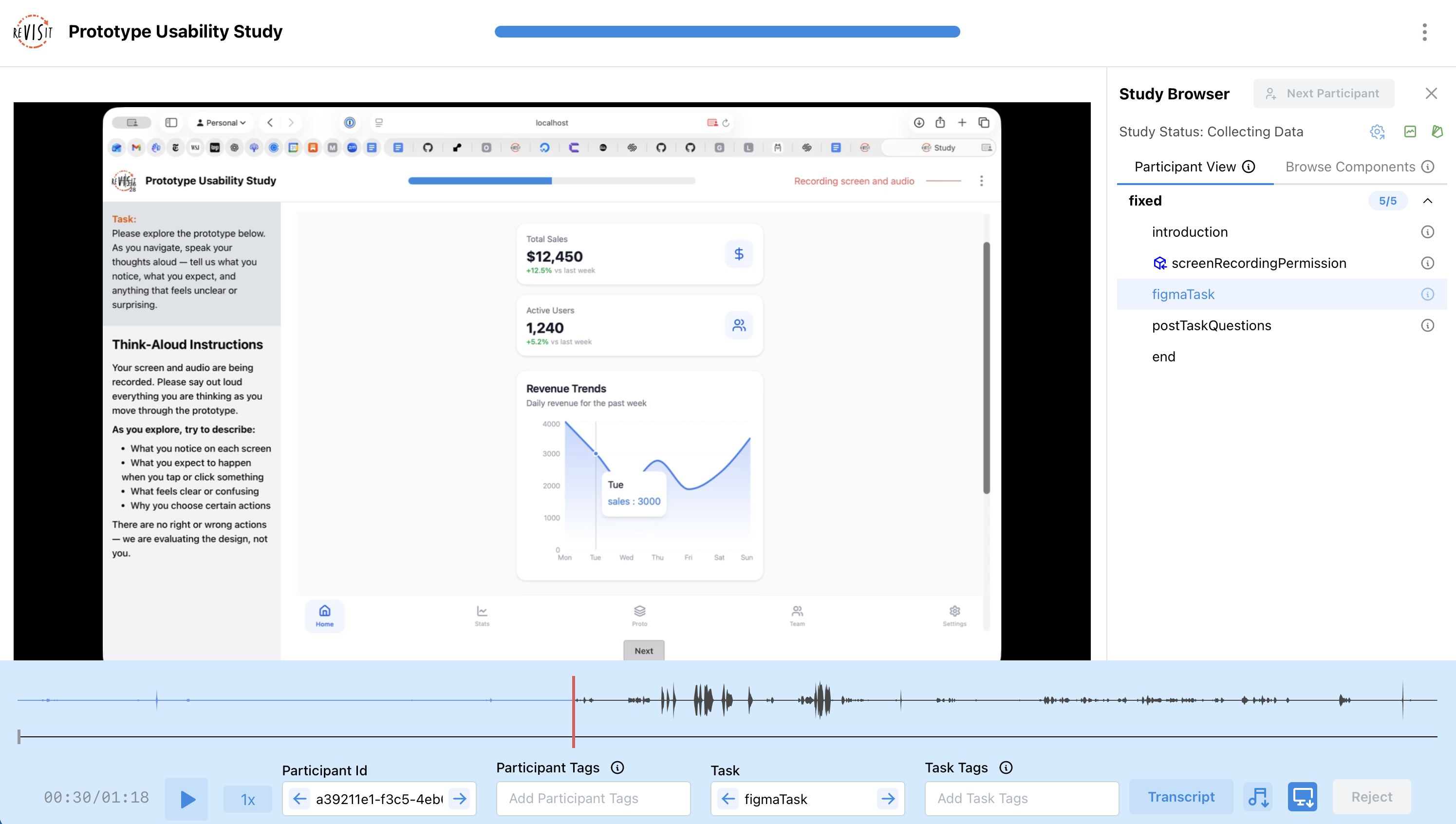
- Participant Replay to watch recordings back with audio aligned on a single timeline
The entire study is defined in a single JSON config, and all data lands in your reVISit storage automatically.
Step 1: Enable Screen Recording and Think-Aloud Audio
Start by turning on both capture modes in the top-level uiConfig block:
"uiConfig": {
  "recordScreen": true,
  "recordAudio": true,
  "withProgressBar": true,
  "withSidebar": true,
  "contactEmail": "your@email.com"
}
Then import the companion library that handles participant permissions:
"importedLibraries": ["screen-recording"]
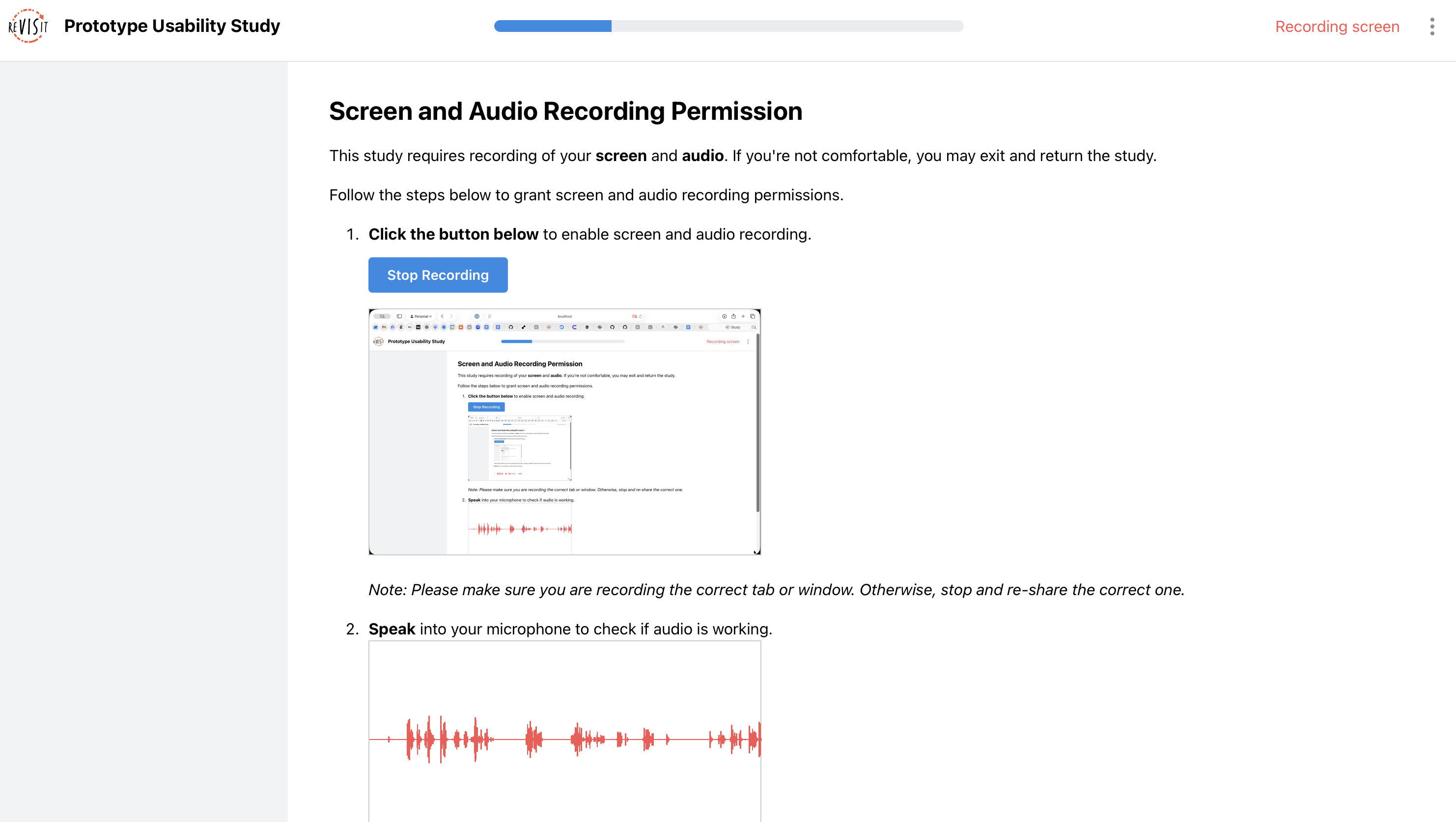
The screen-recording library provides a screenRecordingPermission component that asks participants to share their browser tab — similar to screen-sharing in a video call. When recordAudio: true is also set, the permissions step requests microphone access at the same time. ReVISit blocks progression if either permission is denied.
Insert the permission step near the start of your study sequence:
"sequence": {
  "order": "fixed",
  "components": [
    "introduction",
    "$screen-recording.co.screenRecordingPermission",
    "figmaTask",
    "postTaskQuestions"
  ]
}
Step 2: Embed Your Figma Prototype
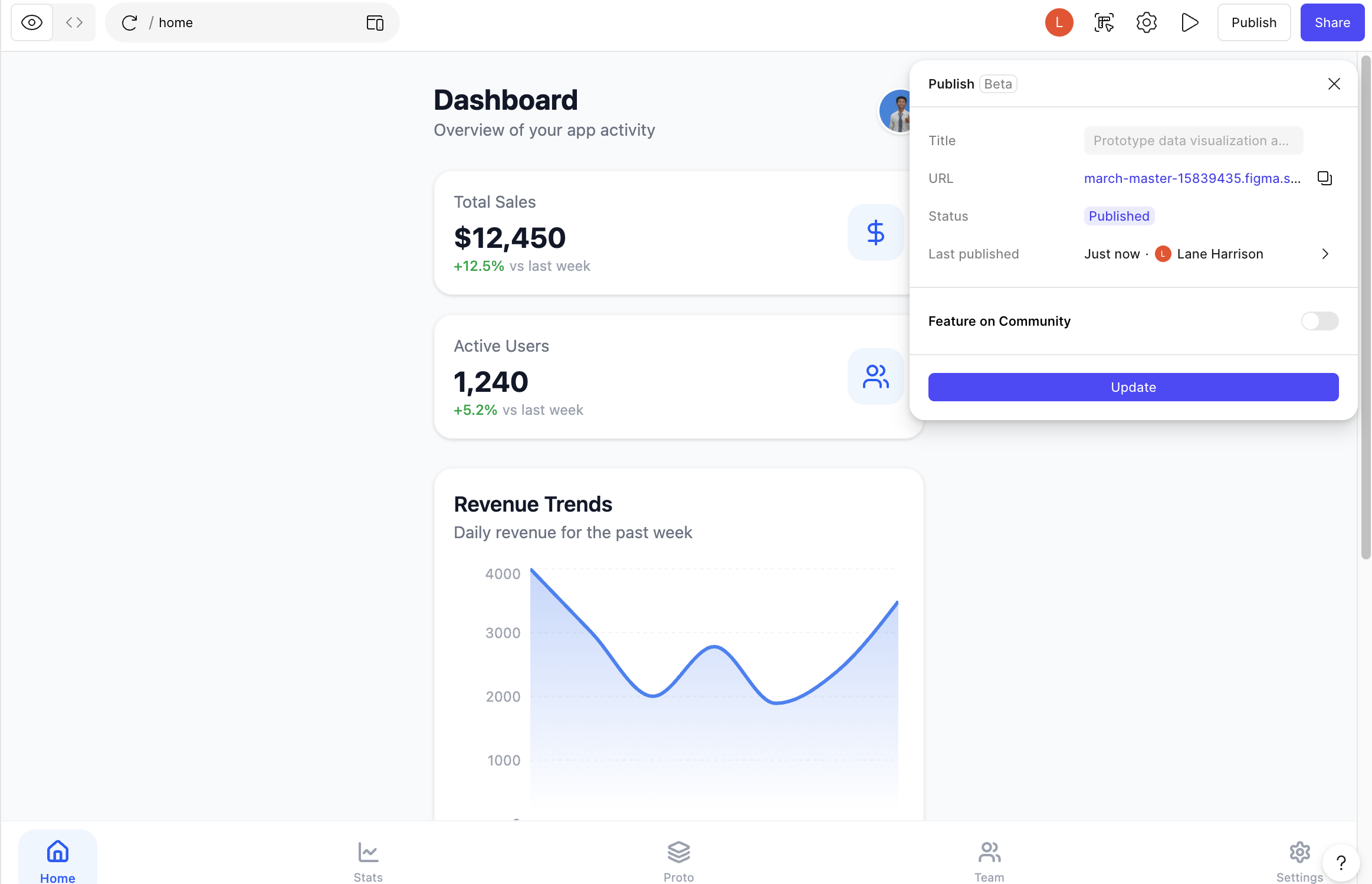
In Figma, open your prototype, click Share → Open embed code or Publish, and copy the URL from the src attribute of the generated <iframe> tag. It will look something like:
https://embed.figma.com/proto/<FILE_ID>/<PROTOTYPE_NAME>?node-id=...&scaling=min-zoom&embed-host=share
Paste that URL into a website component in your reVISit config:
"figmaTask": {
  "type": "website",
  "recordAudio": true,
  "recordScreen": true,
  "path": "https://embed.figma.com/proto/<YOUR_FILE_ID>/<PROTOTYPE_NAME>?...",
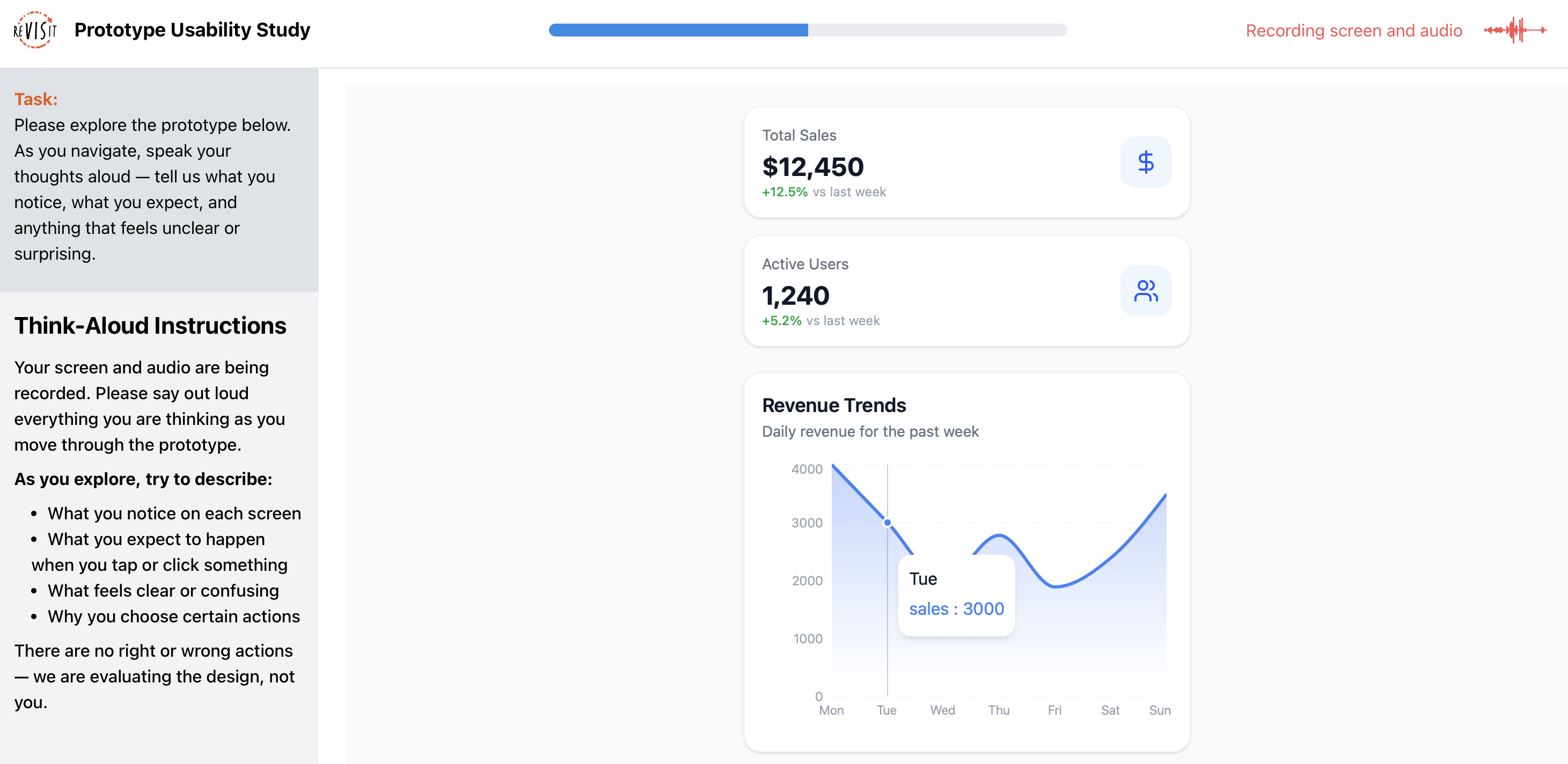
  "instruction": "Please explore the prototype below. As you navigate, speak your thoughts aloud — tell us what you notice, what you expect, and anything that feels unclear or surprising.",
  "response": []
}
Setting recordAudio and recordScreen on the component itself is optional when they are already enabled globally in uiConfig, but it is good practice to be explicit — especially if you want different recording behavior on other components (e.g., a plain questionnaire where you turn audio off).
Step 3: Guide Participants with Sidebar Instructions
Without a moderator in the room, it can be easy for participants to forget to think aloud or to drift into their working process. It can be useful to include an on screen prompt to remind them to stay on task.
Add a textOnly response at "location": "sidebar" to keep instructions visible throughout the entire task:
"response": [
  {
    "id": "think-aloud-instructions",
    "type": "textOnly",
    "location": "sidebar",
    "prompt": "### Think-Aloud Instructions\n\nYour screen and audio are being recorded. Please say out loud everything you are thinking as you move through the prototype.\n\n**As you explore, try to describe:**\n\n- What you notice on each screen\n- What you expect to happen when you tap or click something\n- What feels clear or confusing\n- Why you choose certain actions\n\nThere are no right or wrong actions — we are evaluating the design, not you."
  }
]
Sidebar content remains pinned while participants scroll or interact, so the instructions stay in view even as they move through multiple prototype screens.
Step 4: Collect Structured Post-Task Feedback
Follow the prototype task with a questionnaire component. Setting "recordAudio": true on it means participants can continue to narrate their thoughts while they fill out rating scales and open-ended questions — a useful signal for interpreting their written responses. Alternately, you might design a series of pages with one spoken question per page, which will automatically be segmented by reVISit's trial management architecture.
"postTaskQuestions": {
  "type": "questionnaire",
  "recordAudio": true,
  "response": [
    {
      "id": "satisfaction",
      "prompt": "Rate your satisfaction with the following aspects of the prototype.",
      "location": "aboveStimulus",
      "type": "matrix-radio",
      "answerOptions": "satisfaction5",
      "questionOptions": [
        "Overall Design",
        "Ease of Navigation",
        "Visual Clarity",
        "Completeness of Information"
      ]
    },
    {
      "id": "open-feedback",
      "prompt": "What stood out most during your exploration — positive or negative?",
      "location": "aboveStimulus",
      "type": "longText",
      "placeholder": "Share your thoughts here..."
    }
  ]
}
The Likert matrix response type (matrix-radio) with the built-in satisfaction5 answer options gives you a clean, pre-labeled five-point scale without any extra configuration.
Reviewing Your Results
Once participants complete the study, head to the reVISit analysis interface. The Participant Replay view lets you watch each participant's screen recording with their think-aloud audio synchronized on a timeline — so you can see exactly where they hesitated, backtracked, or expressed confusion.
For deeper qualitative analysis, the Qualitative Coding interface displays auto-transcribed think-aloud text for each participant and task, lets you correct transcriptions, and supports creating and applying codebooks to surface recurring themes across your dataset.
Putting it All Together
Here is a complete, ready-to-use config. The only change you need to make is swapping in your Figma embed URL for the path value in figmaTask:
{
  "$schema": "https://raw.githubusercontent.com/revisit-studies/study/main/src/parser/StudyConfigSchema.json",
  "studyMetadata": {
    "title": "Prototype Usability Study",
    "version": "pilot",
    "authors": ["Your Name"],
    "date": "2026-02-21",
    "description": "A think-aloud usability study with screen and audio recording.",
    "organizations": ["Your Institution"]
  },
  "uiConfig": {
    "contactEmail": "your@email.com",
    "withProgressBar": true,
    "withSidebar": true,
    "recordAudio": true,
    "recordScreen": true
  },
  "importedLibraries": ["screen-recording"],
  "components": {
    "introduction": {
      "type": "markdown",
      "path": "<PATH_TO_YOUR_INTRODUCTION.md>",
      "response": []
    },
    "figmaTask": {
      "type": "website",
      "recordAudio": true,
      "recordScreen": true,
      "path": "https://embed.figma.com/proto/<YOUR_FILE_ID>/<PROTOTYPE_NAME>?node-id=...&scaling=min-zoom&embed-host=share",
      "instruction": "Please explore the prototype below. As you navigate, speak your thoughts aloud — tell us what you notice, what you expect, and anything that feels unclear or surprising.",
      "response": [
        {
          "id": "think-aloud-instructions",
          "type": "textOnly",
          "location": "sidebar",
          "prompt": "### Think-Aloud Instructions\n\nYour screen and audio are being recorded. Please say out loud everything you are thinking as you move through the prototype.\n\n**As you explore, try to describe:**\n\n- What you notice on each screen\n- What you expect to happen when you tap or click something\n- What feels clear or confusing\n- Why you choose certain actions\n\nThere are no right or wrong actions — we are evaluating the design, not you."
        }
      ]
    },
    "postTaskQuestions": {
      "type": "questionnaire",
      "recordAudio": true,
      "response": [
        {
          "id": "satisfaction",
          "prompt": "Rate your satisfaction with the following aspects of the prototype.",
          "location": "aboveStimulus",
          "type": "matrix-radio",
          "answerOptions": "satisfaction5",
          "questionOptions": [
            "Overall Design",
            "Ease of Navigation",
            "Visual Clarity",
            "Completeness of Information"
          ]
        },
        {
          "id": "open-feedback",
          "prompt": "What stood out most during your exploration — positive or negative?",
          "location": "aboveStimulus",
          "type": "longText",
          "placeholder": "Share your thoughts here..."
        }
      ]
    }
  },
  "sequence": {
    "order": "fixed",
    "components": [
      "introduction",
      "$screen-recording.co.screenRecordingPermission",
      "figmaTask",
      "postTaskQuestions"
    ]
  }
}
Next Steps
To learn more, check out the Screen Recording setup guide and the Think-Aloud documentation. If you have questions or want to share what you build, come find us in the reVISit Slack. We'd love to see what kinds of prototypes you put to the test.